Dashboard Widgets for LearnDash
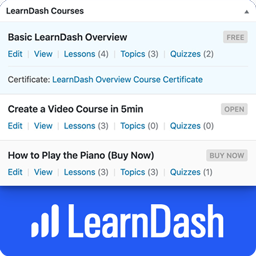
Dashboard Widgets for LearnDash adds 4 widgets to the Dashboard page in your WordPress admin area — Overview, Courses, Links & Recently Modified. The LearnDash Overview widget shows you the total number of courses, lessons, topics, certificates, quizzes, questions, assignments, essays & groups. The LearnDash Courses widget displays a list of up to 10 courses, with handy stats & quick links to edit content that belongs to that course. The Links widget exposes most internal LearnDash pages for quick navigation. The Recently Modified widget displays the 3 most recently modified courses, lessons & topics. Links are available to edit content, open the course builder or access the individual course settings page. NOTE: By default, only Administrators will see the widgets. See the FAQ below about “user/role permissions” to learn how to enable them for additional users. LearnDash Overview Widget The Overview widget provides the following information: Total Courses Total Lessons Total Topics Total Certificates Total Quizzes Total Questions Total Assignments Total Essays Total Groups Total Group Leaders Clicking on each total will take you to the admin page that lists out the respective content. LearnDash Courses Widget The Courses widget provides a scrollable list of up to 10 courses. The information displayed depends on the user’s capabilities & access to certain admin pages. I’ll explain each piece of information below. Visible to all: Course Title Course Status (draft, scheduled, pending review, etc.) Course Price Type Course Scheduled Date (if course is scheduled for a future date) “View” link Visible if user has BOTH edit_courses AND edit_published_courses capabilities: “Edit” link (to edit the course) Visible if user has edit_courses capability: Links to Lesson/Topic/Quiz list pages, along with the total number associated with the course Certificate Title, with a link to edit it (if a certificate has been associated with the course) Visible if user has list_users capability: “Students” link that displays the list of users who are enrolled in that course LearnDash Links Widget The Links widget contains the following sections, each with their own set of links to different admin pages. LearnDash Settings General | Registration | Payments | Emails | Custom Labels | Support Courses View All | Add New | Settings | Categories | Tags Lessons View All | Add New | Settings | Categories | Tags Topics View All | Add New | Settings | Categories | Tags Quizzes View All | Add New | Settings | Essays: Graded | Not Graded Assignments View All | Approved | Not Approved | Settings Groups View All | Add New | Settings | Administration | Group Leaders Visibility & Permissions Who sees each section, as well as the links within each section, will depend on a few things. Here are the important things to know: LearnDash Settings: Only visible to users with the manage_options capability, which by default, is only Administrators. Courses & Lessons: Only visible to users with the edit_courses capability. Topics & Quizzes: First, you must have at least one published Topic or Quiz for each section to be displayed. Then, they’re only visible to users with the edit_courses capability. Course/Lesson/Topic/Quiz/Assignment Settings: Only visible to users with the manage_options capability. Categories & Tags: Only visible to users with the manage_categories capability. Essays: At least one essay must exist. Then, only visible to users with the edit_essays capability. Assignments: At least one assignment must exist. Then, only visible to users with the edit_assignments capability. Groups: At least one group must exist. Then, only visible to users with the edit_groups capability. Group Administration: Only visible to Group Leaders. Group Leaders: Only visible to users with the list_users capability. LearnDash Recently Modified Widget This widget displays the 3 most recently modified courses, lessons, topics, and quizzes. For Courses, you can navigate directly to “Edit,” “Builder” or “Settings.” For Lessons, Topics, and Quizzes, each title links directly to the edit page for that piece of content. It also includes the last modified date/time (i.e. 3 days ago, 5 months ago, etc.). Other Features Just like all Dashboard widgets, they can be hidden by unchecking their respective boxes under “Screen Options” Tested with LearnDash 3.6.0.3 Roadmap There is no scheduled roadmap, but if you have any suggestions, please let us know in the support forum. From within WordPress Visit “Plugins > Add New” Search for “Dashboard Widgets for LearnDash” Click the “Install” button Click the “Activate” button
Top keywords
- courses18×2.52%
- edit15×2.10%
- visible14×1.96%
- course13×1.82%
- total13×1.82%
- users13×1.82%
- learndash12×1.68%
- only12×1.68%
- widget12×1.68%
- capability11×1.54%
- settings11×1.54%
- links10×1.40%
Widget Areas for LearnDash
Widget Areas for LearnDash simply gives you more places to add custom content in LearnDash. By utilizing built-in LearnDash action hooks, we assign widget areas (also known as “sidebars”) to various locations throughout your LearnDash pages. Available LearnDash Widget Areas Focus Mode: Sidebar: Above Navigation Focus Mode: Sidebar: Below Navigation Focus Mode: Content: Start Focus Mode: Below Content Course Page: Content: Start Course Page: Content: End Group Page: Content: Start Group Page: Content: End Requires the “LearnDash 3.0” Active Template. Tested with LearnDash 4.23. How to Use Upon activating the plugin, new widget areas will appear on the Appearance > Widgets screen in your WordPress admin area. You can also access them via the Customizer (Appearance > Customize > Widgets). Simply add the blocks/widgets you’d like to insert into the corresponding widget areas. Be sure to click the “Save” button at the bottom. Navigate to a page that contains that widget area, refresh, and your new widgets will be there. Types of Content to Add WordPress comes with a set of default widgets, several of which might be useful. If you’re using the new block editor, all blocks will also be available to you. Add a simple Paragraph block with some basic text Add an Image or Video/Embed block for more visual content Add a Navigation Menu widget to insert a custom menu you’ve created Add your own Custom HTML widget to embed an or write your own code TIP: You can use the LearnDash Student and LearnDash Visitor blocks to display a block’s contents only to enrolled students or unenrolled visitors. LearnDash Widgets LearnDash comes prepackaged with a few widgets, but there’s probably only one that makes sense in these widget areas. Add a Course Progress Bar to the top or bottom of your Focus Mode sidebar Feel free to experiment with the other LearnDash widgets. Elementor Templates If you’re using Elementor Pro, you can create a custom section and embed it anywhere on your site, including in your new LearnDash widget areas. There are two ways to do this: When you go to insert a block/widget, select the Elementor Library widget. Choose a template from the dropdown menu. Click “Save.” Navigate to Templates > Saved Templates. Copy the shortcode next to the template you want to insert. Now you’ll insert a Shortcode block into the widget area, and paste the shortcode. For more information, see the article in Elementor’s knowledge base. Widget Area CSS Class Names If you need to target the widget areas to apply custom styles using CSS, you can use the following class names. All widget areas have the .ldx-widget-area class. Focus Mode: Sidebar: Above Navigation – .ldx-widget-area.fm-nav-before Focus Mode: Sidebar: After Navigation – .ldx-widget-area.fm-nav-after Focus Mode: Content: Start – .ldx-widget-area.fm-content-start Focus Mode: Below Content – .ldx-widget-area.fm-content-bottom Course Page: Content: Start – .ldx-widget-area.course-content-start Course Page: Content: End – .ldx-widget-area.course-content-end Group Page: Content: Start – .ldx-widget-area.group-content-start Group Page: Content: End – .ldx-widget-area.group-content-end Example Usage: .ldx-widget-area.fm-nav-before { margin: 1em; } This would add 1em of spacing around the widget area that appears above the navigation in the Focus Mode sidebar. In addition, all widgets placed inside of a widget area have a class of .ldx-widget. Show/Hide Widgets on Certain Devices While not a direct feature of this plugin, you can show/hide widgets on different devices using another free plugin. Install & activate the Widget Options plugin Navigate to the widget that you’d like to adjust the visibility on Scroll to the bottom and click on the tab with the mobile phone Choose to either show or hide on the checked devices Check the appropriate devices Click “Save” Show/Hide Widgets on Specific Course/Lesson/Topic Pages Another feature of the free Widget Options plugin (mentioned above) is to only show widgets on specific course, lesson, topic or quiz pages. Install & activate the Widget Options plugin Navigate to the widget that you’d like to adjust the visibility on Scroll to the bottom and click on the settings cog icon Click on the Logic tab In the text box, you can use the is_single() conditional tag to only display that widget on a specific page Use the ID of the course, lesson, topic or quiz 👉 How to find the ID of LearnDash content Example: This would only display the widget on the page with an ID of 7: is_single( '7' ) If you wanted to display a widget on multiple pages (with IDs of 1, 2 and 3), your code would look like this: is_single( array( 1, 2, 3 ) ) There are many more WordPress conditional tags you can use. From within WordPress Visit “Plugins > Add New” Search for “Widget Areas for LearnDash” Click the “Install” button Click the “Activate” button Navigate to “Appearance > Widgets” or open the Customizer to start adding blocks/widgets to your new widget areas