Quick Drafts Access
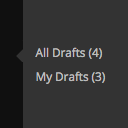
By default in WordPress, accessing the drafts listing of any given post type (including posts and pages) in the admin requires multiple clicks. Then filtering the drafts listing by a particular user (generally to view only your drafts) additionally requires some non-obvious manual URL hacking. This plugin allows you one click access to all drafts, as well as to just your drafts, of each post type via the main admin menu. In addition, the plugin provides a count of the number of current drafts for that post type in the link (i.e. the link could read “All Drafts (3)” to indicate there are three drafts for that post type, and “My Drafts (1)” to indicate you only have one draft for that post type). When the user is responsible for all of the drafts of a given post type (and the “My Drafts” link is not disabled via a hook) then only the “My Drafts” links will appear. It would be redundant to show both the “All Drafts” and “My Drafts” links in this situation. This behavior also ensures only one link is present for single-author blogs. Also, the draft link(s) only appear for users who have the capability to edit posts of that post type. The plugin hides the two types of draft links when no related drafts for that post type are present. See the Filters section for how to override this behavior. Filters are also provided to disable the plugin from ever showing the “All Drafts” or the “My Drafts” links. On admin listings of only draft posts, this plugin also adds a dropdown above the table that allows for the listing to be filtered by the selected draft author. (Only users who actually have a draft post are included in the dropdown.) Links: Plugin Homepage | Plugin Directory Page | GitHub | Author Homepage Developer Documentation Developer documentation can be found in DEVELOPER-DOCS.md. That documentation covers the numerous hooks provided by the plugin. Those hooks are listed below to provide an overview of what’s available. c2c_quick_drafts_access_post_types : Customize the list of post_types for which the draft links will be shown c2c_quick_drafts_access_show_all_drafts_menu_link : Customize whether the ‘All Drafts’ link will appear at all for a post type. c2c_quick_drafts_access_show_my_drafts_menu_link : Customize whether the ‘My Drafts’ link will appear at all for a post type. c2c_quick_drafts_access_show_if_empty : Customize whether the ‘All Drafts’ and/or ‘My Drafts’ links will appear for a post type when that post type currently has no drafts. c2c_quick_drafts_access_disable_filter_dropdown : removal of the ‘Drafts By’ dropdown from drafts post list table.
Top keywords
- drafts31×6.81%
- post16×3.52%
- post type12×2.64%
- type12×2.64%
- link9×1.98%
- draft7×1.54%
- links7×1.54%
- only7×1.54%
- access6×1.32%
- appear5×1.10%
- c2c5×1.10%
- c2c quick5×1.10%
Draft List
If you’re upgrading from a previous release of Draft List (i.e. pre version 2.5) please check out the FAQ – a number of changes have been made in this release that you need to be aware of Draft List allows you to both manage your draft and scheduled posts more easily but also to promote them by showing them on your site via shortcode or widget – use it to show your visitors what’s “coming soon” or as a great SEO tool. How easy is it display a list of draft posts? Here’s an example of how you could use it in a post or page… [drafts limit=5 type=post order=ma scheduled=no template='{{ul}}{{draft}} {{icon}}'] This would display a list of up to 5 draft posts in ascending modified date sequence, with an icon displayed to the right of each if the draft is scheduled. Key features include… Both widgets and shortcodes are available for you to show off your up-coming content Output is highly configurable – create your own look by using a template, identify scheduled posts with an icon, sequence the results in various ways and even narrow down the results to a specific timeframe Click on any of the drafts posts listed to edit them A meta box in the editor screen allows you to omit individual posts from any list outputs Tested up to PHP 8.2 Fully complies with WordPress coding standards Compliant with the stronger WordPress VIP coding standards, as well as compatibility with their platform Community plugin – visit the Github page to get involved with the latest code development, request enhancements and report issues Iconography is courtesy of the very talented Janki Rathod. Shortcode Parameters The following shortcode parameters are valid… cache= : How long to cache the output for, in hours. Defaults to half an hour. Set to No to not cache at all. Whenever you save a post any cache will be cleared to ensure that any lists are updated. date= : The format of any dates output. This uses the PHP date formatting system – read here for the formatting codes. Defaults to F j, Y, g:i a. folder= : The scheduled icon will be, by default, the one in the plugin folder named scheduled.png. However, use this parameter to specify a folder within your theme that you’d prefer the icon to be fetched from. limit= : The maximum number of draft items to display. The default is 0, which is unlimited. order= : This is the sequence that you’d like to order the results in. It consists of 2 codes – the first is either t, m or c to represent the title, modified date or created date and the second is a or d for ascending or descending. Therefore order=td will display the results in descending title sequence. The default is descending modified date. pending= : True or false, where to include pending posts in the result. By default, pending posts will not be included. scheduled= : True or false, where to include scheduled posts in the result. By default, scheduled posts will be included. template= : This is the template which formats the output. See the section below on * *Templates** for further information. type= : This allows you to limit the results to either post or page. The default is both. words= : The minimum number of words that must be present in the draft for it to be included. Defaults to 0. To restrict the posts to a particular timeframe you can use the following 2 parameters. You simply state, in words, how long ago the posts must be dated for e.g. “2 days”, “3 months”, etc. created= : his reflects how long ago the post/page must have been created for it to be listed. For example 6 months would only list drafts that were created in the last 6 months. modified= : This reflects how long ago the post/page must have been modified last for it to be listed. For example 6 months would only list drafts that have been modified in the last 6 months. Templates The template parameter allows you to format the output by allowing you to specify how each line of output will display. A number of tags can be added, and you can mix these with HTML. The available tags are as follows… {{ul}} – Specifies this is an un-ordered list (i.e. bullet point output). This MUST be specified at the beginning of the template if it is to be used. {{ol}} – Specifies this is an ordered list (i.e. number output). This MUST be specified at the beginning of the template if it is to be used. {{icon}} – This is the icon that indicates a scheduled post. {{draft}} – This is the post detail and is the only REQUIRED tag. {{author}} – This is the name of the post author. {{author+link}} – This is the name of the post author with, where available, a link to their URL. {{words}} – The number of words in the draft post. {{chars}} – The number of characters (exc. spaces) in the post. {{chars+space}} – The number of characters (inc. spaces) in the post. {{created}} – The date/time the post was created. {{modified}} – The date/time the post was last modified. {{category}} – Shows the first category assigned to the post. {{categories}} – Shows all categories assigned to the post, comma separated. If {{ul}} or {{ol}} are specified then all the appropriate list tags will be added to the output. If neither are used then it’s assumed that line output will be controlled by yourself. Omitting Posts/Pages from Results If you wish to omit a page or post from the list then you can do this in 3 ways… By giving the post a title beginning with an exclamation mark. You can then remove this before publishing the post. The post and page editor has a meta box, where you can select to hide the page/post. You can add a custom field to a page/post with a name of ‘draft_hide’ and a value of ‘Yes’ Edit Link If the current user can edit the draft item being listed then it will be linked to the appropriate edit page. The user then simply needs to click on the draft item to edit it. There are separate permissions for post and page editing, so an editor with just one permission may find that they can only edit some of the draft items. Drafts that don’t have a title will not be shown on the list UNLESS the current user has edit privileges for the draft – in this case a title of [No Title] will be shown. Using a Widget Sidebar widgets can be easily added. In Administration simply click on the Widgets option under the Appearance menu. Draft Posts will be one of the listed widgets. Drag it to the appropriate sidebar on the right hand side and then choose your options. Save the result and that’s it! You can use unlimited widgets, so you can add different lists to different sidebars.