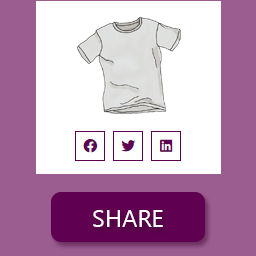
Social Share for WooCommerce
Social Share for WooCommerce allows you to add actionable social icons on WooCommerce single product pages. This WooCommerce extension gives you a quick single-click solution to share your products on various social media platforms. Social media has a great influence on our everyday life. They have become an inseparable part of our modern life. As a result, social media gained the ability to influence sectors like eCommerce. Top and successful marketers understand the importance of social presence and social media marketing to boost a business, especially in the eCommerce sector. Why should you miss out! WooCommerce comes with tons of features, but it does not offer a default option to add actionable social media icons. With Social Share for WooCommerce, you can add social media icons to the product page. Additionally, you can add a copy to the clipboard button along with the social media platforms. This will allow everyone to copy the product link into the clipboard. View Demo | Documentation | Support | Pro Version Features of this plugin 🥳 One-click social share for WooCommerce products Give your customers the ability to share your products on various social media sites with just a single click. 🥳 Select your desired social media icons You can select your desired social media icons from a given list. So, you can precisely choose your desired social media platforms. 🥳 Customize the order of the social media icons Additionally, you can drag and drop the icons to customize their order on the product page. Thus, you can effortlessly put your most desired social channel in the first position and so on. 🥳 Control the social media icon’s display position This WooCommerce extension also allows you to select the desired position of the social media icons on the product pages. Currently, there are three spots to choose from. You can either display the social media icons with the product category name, after the product title, or after the product price. Additionally, there is an option to hide the icon. The premium module offers an option to display floating social share icons on the left or right side of the browser window. When activating that option, you may want to hide the icons from other places. 🥳 Control the content of the icons The plugin offers customization options for social media icons. Here you also have three different options to choose from. You can select between only icon, only text, and both icon and text at the same time. 🥳 Customize the social media icon’s appearance The plugin is simple but when it comes to enriching the features, there is no compromise. Based on your theme and product page appearance, you can choose the best icon shape for your WooCommerce store. You can choose between Round and Square shapes at this moment. 🥳 Copy product link to Clipboard made easy Moreover, the plugins also add an option to enable a “Copy to Clipboard” option along with the social media icons. As a result, your customers will be able to copy the product link to the clipboard while they are also able to share the products on the included social networks. 🥳 Display title before social icons The plugin lets you enable title text before social icons. By default, the text will appear as ‘Share On.’ 🥳 Shortcode Using a page builder like- Elementor, Divi, Beaver Builder, etc? The plugin gives you a facility of a shortcode. Using [psfw_basic_share] you can display social icons in any spot on the page. 🥳 Pop-up modal with all social icons Keep your product page clean by displaying icons of the most popular social platform. Enjoy peace of mind knowing that your customers can still access all available platforms on the pop-up modal. Feature Highlights of Social Share for WooCommerce PRO 🔥 GET THE ADVANCED VERSION ✔️ Set floating social share icons on the left or right side of the browser window ✔️ Love tooltips! advanced version of Social Share for WooCommerce have you covered ✔️ Let your customers share specific variation links to their desired social platforms (even it will work for the pop-up modal with all social icons ) 🎨️ Color customization to sync social share icons with your brand is at your fingertips 🎨️ Font size customization that matches your store’s existing design is a breeze 🎨️ Additionally, it also allows you to change font weight to normal(Regular), lighter, or bold 🎨️ Most importantly, you will be able to tweak the size of the social platform icons 🎨️ On top of that, there are ample options to customize the hover style of the items 🎨️ Finally, the tooltip text color and background color are also easily customizable 🎨️ Display a social share icon on the shop/archive page to share it from the product listing Our Popular Addons for WooCommerce 👉 Variation Price Display Range for WooCommerce 👉 Fast Cart for WooCommerce 👉 Product Variation Table for WooCommerce – PVT 👉 VariationX – Variations as Radio Buttons for WooCommerce
Top keywords
- social39×4.83%
- icons23×2.85%
- media18×2.23%
- social media18×2.23%
- share16×1.98%
- woocommerce15×1.86%
- product14×1.73%
- media icons9×1.12%
- social media icons9×1.12%
- social share9×1.12%
- display7×0.87%
- icon7×0.87%
Skyboot Custom Icons for Elementor – Elementor Icons library – 14300+ Icons
Skyboot Custom Icons for Elementor is a powerful custom icons plugin designed for the Elementor page builder. If you’re looking to add custom icons to your site, this Elementor’s custom icons plugin makes it simple and effective. With thousands of beautiful icons, you can create a unique look and feel for your website. The Skyboot custom icons plugin expands the default Elementor icon library, giving website owners access to more variety and flexibility. Whether you’re building landing pages, portfolios, or blogs, the icon plugin ensures your designs stand out with style. By using Skyboot Custom Icons for Elementor, you can increase the Elementor icons library and instantly customize colors, sizes, and styles directly inside the editor—no coding required. It’s a reliable and easy-to-use custom icons plugin for Elementor that every Elementor-based website owner will find valuable. This plugin adds more than 14,300 icons to expand your built-in Elementor icon library, giving you greater choice and flexibility. You can use these icons anywhere on your website, completely free. Since it extends the original Elementor icon library, it’s easy to use without any extra setup. From the editor screen, you can quickly adjust icon size, color, and style to match your design. 👉 Click for Live Demo 👉 Our Website: https://skybootstrap.com 👉 Our Blog: Click Here 👉 Our SaaS Product: 🔥 TLinky – All in One Link Management Platform. TLinky’s Core Solutions: URL Shortener, QR Code Generator, & Link In Bio Builder. 👉 Subscribe Our YouTube Channel: Subscribe Now 👉 Like Facebbok Page: Like Now 👉 Love this plugin? Support our work by buying me a coffee! Your support keeps us motivated to create and improve. Thank you! Most of the popular brand icons are available in every icon package like Google icons, YouTube icons, Instagram icons, Whatsapp icons, Facebook icons, Twitter icons, Linkedin icons, tiktok icon, and much more. There are huge numbers of social media icons included in the plugin. All are free icons in the plugin like website icons, maps icons, camera icons, UI icons, and other icons in one place. What’s icons pack are included in the custom Elementor icons plugin: ✅ Brands icons (934) ✅ Devicons Icons (191) ✅ Elegant Icon (360) ✅ Elusive Icons (303) ✅ Icofont (2400+) ✅ Ico Moon / icomoon (491) ✅ Iconic Icons (172) ✅ Ion icons / ionicons (696) ✅ Line Awesome (2004) ✅ Line Icon (511) ✅ Linear icons (170) ✅ Material Design Icons / material icons (5346) ✅ Simple Line Icon (189) ✅ Themify Icon (351) ✅ Open Iconic (22) Features of custom icons for Elementor plugin: ✅ 14,300+ Custom Elementor Icons. ✅ Individual ON/OFF switch. ✅ 15 icon font packs included. ✅ Easy to use. ✅ Use icons anywhere on your website. ✅ Extend default Elementor icon library. ✅ Fast loading. How do I use custom icons with Elementor? After installing the plugin, you’ll get the option to manage individual icon packs with an ON/OFF switch in the settings panel. Follow these 4 simple steps: 1. Download and install the plugin. 2. Activate the plugin, then go to the plugin settings page. 3. Enable or disable the icon packs you want using the ON/OFF switches. 4. Open Elementor and select icons directly from the default icon picker. How to install the Elementor custom icons plugin using FTP? 👉 Download the plugin from WordPress.org (or your source). 👉 Unzip the downloaded .zip file. 👉 Log in to your FTP account using FileZilla or another FTP client. 👉 Browse to the /wp-content/plugins/ directory on your server. 👉 Upload the unzipped plugin folder into the /plugins/ directory. 👉 Go to your WordPress dashboard → Plugins → Installed Plugins, and activate the plugin. 👉 Once activated, a new admin menu will appear for the settings panel. 👉 You can now access all icons directly in Elementor’s built-in icon library. How do i use custom Elementor icons? What are the benefits of using the custom icons plugin? Skyboot Custom Icons for Elementor is simple to use with any theme or plugin that supports Elementor. Adding custom icons is a great way to make your site stand out and give it a unique look. If you already use Elementor, this plugin expands your default icon library with thousands of additional icons. It’s especially helpful for designers, developers, and site owners who want more flexibility and variety. The plugin is actively maintained and improved by the Skybootstrap team, and all updates are available for free to Elementor users. What is Elementor? Elementor is a popular WordPress page builder plugin with over 10 million active installations. It allows users to design pages visually using a drag-and-drop interface, without needing to code. By default, Elementor only includes Font Awesome icons, which can feel limited for many site builders. Skyboot Custom Icons for Elementor solves this by adding more than 14,300 icons across 15 packs. This gives you a wider selection to make your website more visually appealing and consistent with your design needs. How to use custom icons in Elementor? To expand your Elementor icons library, install and activate the Skyboot Custom Icons for Elementor plugin. This adds more than 14,300 icons from 15 packs directly into Elementor’s icon picker. The plugin is fully compatible with the latest version of Elementor and works with any Elementor-supported theme. After activation, simply open the Elementor editor, go to the icon selection panel, and you’ll see the new icons available alongside the default set. You can easily customize icon size, color, and style inside Elementor’s interface—just like the built-in icons. This makes it simple to design visually consistent and attractive websites without needing extra coding or third-party tools. Are social icons available in this plugin? Skyboot is incredibly simple to use with the Elementor interface, and it’s compatible with any theme and plugin. In this one plugin, including Facebook icons, Instagram icon, Twitter icon, LinkedIn icon, Pinterest icon, YouTube icon, gallery icon,discord icons, email icons,custom icons, google map icons and many more. Every icone comes on many different veriation. All font icons free to use. Why should I expand the Elementor Icons List? Expanding the Elementor Icons list gives you access to a much larger variety of icons, helping you design more flexible and visually engaging layouts. A broader icon library makes it easier to meet specific design needs, represent different industries or features, and stay aligned with modern design trends and user expectations. Can I customize the icons in the Elementor Icon Set? Yes. All icons in the Elementor Icon Set can be fully customized directly inside Elementor. You can adjust the size, color, and alignment, and apply styling options to match your site’s branding and design. This flexibility ensures that icons blend seamlessly with your website’s overall look and feel. 📢 If you are an Icon author feel free to contact us help.ukthemes [at] gmail.com. We will add your icon pack to this plugin. ☂️ Please note: This plugin requires any version of the Elementor Page Builder to be installed and active. Install Elementor Plugin 👉 Liked Skyboot Custom Icons for Elementor? ❤️ Rate us on WordPress 🧡 == Our Other Plugin == Looking to showcase your work in style? Try Skyboot Portfolio Gallery for Elementor — a flexible gallery and portfolio plugin with filterable layouts, lightbox, and customization options. Perfect for designers, photographers, and agencies. 👉 Explore Skyboot Portfolio Gallery for Elementor