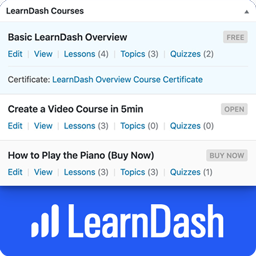
Dashboard Widgets for LearnDash
Dashboard Widgets for LearnDash adds 4 widgets to the Dashboard page in your WordPress admin area — Overview, Courses, Links & Recently Modified. The LearnDash Overview widget shows you the total number of courses, lessons, topics, certificates, quizzes, questions, assignments, essays & groups. The LearnDash Courses widget displays a list of up to 10 courses, with handy stats & quick links to edit content that belongs to that course. The Links widget exposes most internal LearnDash pages for quick navigation. The Recently Modified widget displays the 3 most recently modified courses, lessons & topics. Links are available to edit content, open the course builder or access the individual course settings page. NOTE: By default, only Administrators will see the widgets. See the FAQ below about “user/role permissions” to learn how to enable them for additional users. LearnDash Overview Widget The Overview widget provides the following information: Total Courses Total Lessons Total Topics Total Certificates Total Quizzes Total Questions Total Assignments Total Essays Total Groups Total Group Leaders Clicking on each total will take you to the admin page that lists out the respective content. LearnDash Courses Widget The Courses widget provides a scrollable list of up to 10 courses. The information displayed depends on the user’s capabilities & access to certain admin pages. I’ll explain each piece of information below. Visible to all: Course Title Course Status (draft, scheduled, pending review, etc.) Course Price Type Course Scheduled Date (if course is scheduled for a future date) “View” link Visible if user has BOTH edit_courses AND edit_published_courses capabilities: “Edit” link (to edit the course) Visible if user has edit_courses capability: Links to Lesson/Topic/Quiz list pages, along with the total number associated with the course Certificate Title, with a link to edit it (if a certificate has been associated with the course) Visible if user has list_users capability: “Students” link that displays the list of users who are enrolled in that course LearnDash Links Widget The Links widget contains the following sections, each with their own set of links to different admin pages. LearnDash Settings General | Registration | Payments | Emails | Custom Labels | Support Courses View All | Add New | Settings | Categories | Tags Lessons View All | Add New | Settings | Categories | Tags Topics View All | Add New | Settings | Categories | Tags Quizzes View All | Add New | Settings | Essays: Graded | Not Graded Assignments View All | Approved | Not Approved | Settings Groups View All | Add New | Settings | Administration | Group Leaders Visibility & Permissions Who sees each section, as well as the links within each section, will depend on a few things. Here are the important things to know: LearnDash Settings: Only visible to users with the manage_options capability, which by default, is only Administrators. Courses & Lessons: Only visible to users with the edit_courses capability. Topics & Quizzes: First, you must have at least one published Topic or Quiz for each section to be displayed. Then, they’re only visible to users with the edit_courses capability. Course/Lesson/Topic/Quiz/Assignment Settings: Only visible to users with the manage_options capability. Categories & Tags: Only visible to users with the manage_categories capability. Essays: At least one essay must exist. Then, only visible to users with the edit_essays capability. Assignments: At least one assignment must exist. Then, only visible to users with the edit_assignments capability. Groups: At least one group must exist. Then, only visible to users with the edit_groups capability. Group Administration: Only visible to Group Leaders. Group Leaders: Only visible to users with the list_users capability. LearnDash Recently Modified Widget This widget displays the 3 most recently modified courses, lessons, topics, and quizzes. For Courses, you can navigate directly to “Edit,” “Builder” or “Settings.” For Lessons, Topics, and Quizzes, each title links directly to the edit page for that piece of content. It also includes the last modified date/time (i.e. 3 days ago, 5 months ago, etc.). Other Features Just like all Dashboard widgets, they can be hidden by unchecking their respective boxes under “Screen Options” Tested with LearnDash 3.6.0.3 Roadmap There is no scheduled roadmap, but if you have any suggestions, please let us know in the support forum. From within WordPress Visit “Plugins > Add New” Search for “Dashboard Widgets for LearnDash” Click the “Install” button Click the “Activate” button
Top keywords
- courses18×2.52%
- edit15×2.10%
- visible14×1.96%
- course13×1.82%
- total13×1.82%
- users13×1.82%
- learndash12×1.68%
- only12×1.68%
- widget12×1.68%
- capability11×1.54%
- settings11×1.54%
- links10×1.40%
WP Dash Message
The plugin allows the user to write a message for a new widget box that appears at the top of the dashboard. This can be accomplished on both a site and network level. The site level options are available on the site’s dashboard settings tab called “Dashboard Message”, while the network level options are found on the Network Settings tab on the Network Admin dashboard. Network level messages are displayed after site level messages in the message box. The header of the dashboard box/widget is “Welcome, (user’s display name goes here)” by default. 1.0.2 UPDATE: The dashboard message now appears on the global dashboard as well. Pushed out network level entry field bug fixes as well. 1.1.0 UPDATE: The plugin now also enables you to REMOVE any dashboard widgets you wish to from any of the dashboards. This means that you can disable network, site, and global dashboard widgets. Network and global (the dashboard new users without a blog/site typically see) dashboard widgets can be removed through the “Network Settings” page (Network Dashboard -> Settings -> Network Settings). Site dashboard widgets can be removed from both the “Network Settings” page and from the “Dashboard Message” settings page (Dashboard -> Settings -> Dashboard Message). PLEASE NOTE that if a site dashboard widget is disabled through the network settings, site admins will not be able to re-enable it through the “Dashboard Message” settings page. 1.1.1 UPDATE: Optimization. 1.1.2 UPDATE: Small bug fix. GOALS FOR FUTURE UPDATES: Colour options would be great to add for a customized look. Please NOTE: Some users may not have the Welcome box appear at the top of the Dashboard. This usually happens if the user has rearranged the boxes on the Dashboard previously. –This widget was developed with the help of the WordPress Codex, Tutorials, and Help Forums–
Top keywords
- dashboard20×6.39%
- network13×4.15%
- settings10×3.19%
- site9×2.88%
- message7×2.24%
- level