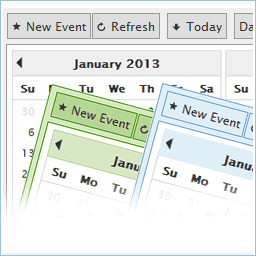
CP Multi View Events Calendar
CP Multi View Events Calendar is a professional and easy-to-use event calendar plugin for WordPress that allows you to display, organize, and manage events in multiple interactive views — including month, week, day, and multi-month layouts. This all-in-one calendar and event manager helps you create visually stunning calendars for your website, with customizable styles, colors, and display options. Whether you need a simple events list or a full-featured scheduling solution, CP Multi View Events Calendar gives you the flexibility to do it all. Perfect for: – Businesses managing multiple events – Schools, clubs, and communities – Bloggers and content creators – Anyone who needs a customizable, interactive event calendar 👉 Live demo and examples: View 20 calendar demos and styles ✨ Key Features Multiple calendar views — Month, Week, Day, and Multi-Month (similar to Google Calendar) Fully responsive and mobile-friendly event calendars Support for recurring / repeating events Fast AJAX loading for smooth calendar navigation Editable events from the front end or admin area Multiple event calendars and views on the same page Customizable colors, fonts, and calendar styles Tooltips for event details (on hover or click) Event locations, rich text descriptions, and images Links from calendar events to custom URLs or pages 12- or 24-hour clock formats Option to display only selected weekdays GDPR compliant — no personal data stored unless entered manually Import / export events with iCal (.ics) format (available in Platinum version) 🌍 Available Languages Czech, Danish, Dutch, English, French, German, Italian, Norwegian, Polish, Portuguese, Russian, Slovak, Slovenian, Spanish. Don’t see your language? Open a support ticket and we’ll add it quickly! 🆕 Latest Update New: A refreshed interface for easier editing of inserted event calendar views, plus instant preview buttons for faster verification of calendar layouts on your website. 🔁 Import / Export Events (iCal Support) You can easily import and export calendar events using the iCal (.ics) format — fully compatible with Google Calendar. This feature is available in the Platinum version. 📅 Calendar Insertion Settings To insert the calendar form into some content or post use the insertion area that will appear below the editor when editing contents. It looks like the following image: https://wordpress.dwbooster.com/UserFiles/Image/cp-multiview-calendar/insert-calendar.png The fields on the event calendar insertion area (shown in the above image) are the following: MultiCalendar: Which of the calendars will be shown. Calendar Views: The views that will be included in the event calendar. Default View: Which of the calendar views will appear as default. Start day of the week: The start day of the week (Ex: Sunday, Monday, …). CSS Style: Select one of the CSS styles available to render the calendar. Palette Color: The palette color used for the events in the calendar. Allow edition: Check this box if the event calendar will allow edition on the public website. Other buttons: Select the buttons that will be displayed on the top of the calendar. Number of Months for nMonths View: Number of months shown at the same time in the nMonths View. Other parameters for nMonths View: Other parameters for the nMonths View (more info below). Other parameters: Other parameters that apply to all calendar views (more info below). 💡 Advanced Customization The additional parameters should be added into the “Other Parameters” box in the event calendar insertion area. These parameters must be comma separated and will overwrite the initial configuration selected for the event calendar. The “Other Parameters” box can be found in the following location (click to enlarge image): https://wordpress.dwbooster.com/demos/multi-view/screenshots/additional-parameters.png 🎨 Adding custom CSS Styles The custom CSS styles can be added into the “Customization area >> Add Custom Styles” (at the bottom of the page that contains the list of calendars). 🧩 Calendar View Examples The following area some sample views. You can apply or mix configurations to get your own calendar views in addition to the following samples: View day only: Event calendar configured with the “day” view option only, the “Default View” should be “day”. The views “Week”, “Month”, “nMonth” should be unchecked. To fix the height, just add (for example) the parameter “height:400”. Sample: https://wordpress.dwbooster.com/demos/multi-view/01-view-day-only.html View week only: Event calendar configured with the view week option only; the “Week” view should be enabled and the default view should be “week”. The views “Day”, “Month” and “nMonth” should be disabled. To fix the height, just add (for example) the parameter “height:400”. Sample: https://wordpress.dwbooster.com/demos/multi-view/02-view-week-only.html View month only: Event calendar configured with the view month option only. To get this enable the “Month” view and set the default view to “month”. The views “Day”, “Week” and “nMonth” should be unchecked. To fix the height, just add (for example) the parameter “height:400”. Sample: https://wordpress.dwbooster.com/demos/multi-view/03-view-month-only.html View n-Months only: Event calendar configured with the view n-Months option only. This can be done by setting the amount of months to display in the event calendar to 12, enable only the “n-Month” view and setting the “Default View” to “nMonth”. All the other views and buttons should be unchecked. In the styles for this sample we have selected to fix the calendar width. Sample: https://wordpress.dwbooster.com/demos/multi-view/04-view-n-months-only.html Small event calendar: You can configure the calendar just like a single small event calendar. This can be done by selecting the n-Months view and setting the “Number of Months for nMonths View” dropdown select box to 1. Sample: https://wordpress.dwbooster.com/demos/multi-view/05-small-calendar.html n-Month view, only one month, large view: Event calendar with the n-Month view configured to display a single month in a large view. To get this result enable only the “n-Month” view and add the styles specified in the following sample page: https://wordpress.dwbooster.com/demos/multi-view/06-one-month-large-view.html n-Month view with 2 months using all the width: To get this result in the calendar enable only the “n-Month” view, set the “Number of Months for nMonths View” dropdown select box to 2 and add the styles specified in the following sample page to fix the width of both the event calendar area and the width of each month: https://wordpress.dwbooster.com/demos/multi-view/07-two-months-using-all-the-width.html n-Month view, 3 months with vertical align: The first settings needed to get this calendar configuration is to enable only the “n-Month” view and set the “Number of Months for nMonths View” dropdown select box to show 3 months. After that proceed to add some CSS styles to fix the width to the desired column width. This way you can publish the calendar in the sidebar of your website. Sample: https://wordpress.dwbooster.com/demos/multi-view/08-various-months-with-vertical-align.html Tooltip displayed on month,week and day view: In this event calendar sample, when you click over an event in the calendar, a floating tooltip panel with additional information is displayed. This type of tooltip is available for the month, week and day views. The n-Month view has a different type of tooltip panel. To enable the tooltips, the parameter “showtooltipdwm” must be set to “true” (or enable it by checking the checkbox in the visual configuration). In addition to these parameters, add also the styles mentioned in the following page as instructed: https://wordpress.dwbooster.com/demos/multi-view/09-tooltip-displayed.html Lighter view for events and center align: This calendar sample features the month, week and day views showing the events with a more lighter view: a color border is used instead filled backgrounds and the text is centered. The tooltips are already enabled for this sample; to enable the tooltips you can do that by checking the tooltip checkbox in the visual configuration or just by setting parameter “showtooltipdwm” to “true”, this is also explained in other demos. To get the more lighter view you can add the styles indicated at this page: https://wordpress.dwbooster.com/demos/multi-view/10-lighter-view-center-align.html Multi-line event description: Event calendar that displays a multi-line event description in the month, week and day views, this is useful to display more information directly over the calendar. Only two CSS rules should be added to the styles to get this configuration. It will work with any selection of parameters if you are using one of the mentioned views. Check the detailed instructions at this page: https://wordpress.dwbooster.com/demos/multi-view/11-multi-line-event-description.html Images and HTML formatting in tooltip: The tooltips on the calendar can show images and formatted text. There are some styles that can be used to show/hide/customize the title, location, description and time: these styles are the CSS classes named “bubbletitle”, “bubblelocation”, “bubbledescription” and “bubbletime”. In this sample we have used only the class “bubbletime” to align it at the bottom of the content/image: https://wordpress.dwbooster.com/demos/multi-view/12-images-and-html-formatting-in-tooltip.html Images directly on the calendar cells: You can use this plugin like a picture calendar. The images should be added to the event description and the css rules mentioned in the following page to complete the formatting: https://wordpress.dwbooster.com/demos/multi-view/13-images-directly-on-the-calendar-cells.html Show only from Monday to Friday: In this event sample we have disabled the Saturday and Sunday since this is a common configuration. In the “viewWeekDays” parameter, each number in the array represents a weekday from Sunday to Saturday. An zero means that the weekday is disabled (not shown) and a 1 means that the day is enabled (shown). Details at: https://wordpress.dwbooster.com/demos/multi-view/14-show-only-from-monday-to-friday.html Using 12 or 24 hour clock: This calendar supports both the 12 and the 24 hour clock (also known as military time). The 24-hour clock is enabled as default; if you prefer to use the 12-hour clock then just set the parameter “militaryTime” to “false”. Sample: https://wordpress.dwbooster.com/demos/multi-view/15-using-12-or-24-hour-clock.html Showing the n-Days view: With this event calendar view you can display many days in a view similar to the single day view. First you should enable the “nDays” view and then set the number of days to view on each calendar page. The parameters are viewNDays:true for enabling the view, numberOfDays:10 for setting the number of days and viewdefault:”nDays” to make it the default view if needed. Sample: https://wordpress.dwbooster.com/demos/multi-view/16-n-days-view.html Selecting hours to be shown: In some applications you may want to select only some hours to be shown in the event calendar, for example working hours. In the “Days”, “nDays” and “Week” views you can select the range of hours to be shown be setting the start and end hours. Three parameters must be specified for this: the start hour hoursStart:8, the end hour hoursEnd:17 and the height of a single hour cell cellheight:60. Hours are in military time, so 17 means 5:00pm. Sample: https://wordpress.dwbooster.com/demos/multi-view/17-selecting-hours-to-be-shown.html Using drop-down lists for location and title: The location and title that are part of each event’s description in the calendar are open/editable fields by default but you can convert them in drop-down lists to make them easier to edit and keep the data consistency. Sample and detailed instructions: https://wordpress.dwbooster.com/demos/multi-view/18-lists-for-location-and-title.html Multi-column day view, location or title: In this event calendar sample the location and title have been converted in drop-down lists as explained in the previous sample #18. In addition to that now we have selected to use the “title” field as the column header in the day view, this way the events are placed in different columns agrupated by their titles. The same can be done with the location instead the title. Sample and detailed instructions: https://wordpress.dwbooster.com/demos/multi-view/19-multi-column-day-view.html Day view with location & title grid: The event calendar day view can be modified to show the title and location as headers of the rows and column instead the default single columns and the hour in the row header. This is useful to display informations agrupated by title and location on each day. Sample and detailed instructions: https://wordpress.dwbooster.com/demos/multi-view/20-day-view-with-location-title-grid.html
Eventin – Events Calendar, Tickets, Registration, Booking & WooCommerce
Eventin is a WordPress event calendar, event registration, and event management plugin for creating in-person, virtual, hybrid, and recurring events from a single dashboard. Create free or paid events, manage event listings, sell event tickets online with WooCommerce, Stripe, or PayPal, collect RSVPs, and manage attendees with an easy booking workflow. Eventin also includes AI-powered event creation, helping you generate event titles, descriptions, schedules, and FAQs in seconds. It’s also an excellent choice for eLearning and LMS websites, making it easy to manage live classes, webinars, workshops, coaching sessions, and cohort-based training alongside your courses. Built-in Zoom and Google Meet integrations let you host virtual sessions while recurring events simplify ongoing classes and training programs. Whether you’re organizing a one-day workshop, a multi-day conference, a meetup, or a large business event, Eventin helps you manage event registration, ticket sales, attendee check-in, speaker schedules, and event agendas from one place. QR code check-in tickets, automated confirmation emails, and WooCommerce-powered ticketing provide a smooth experience for both organizers and attendees. The free version includes Zoom integration at no extra cost, allowing attendees to receive meeting links automatically after registration. With Google Meet support, Google Calendar synchronization, iCal, Outlook Calendar, recurring events, and email automation, Eventin gives you everything you need to manage professional events with WordPress. Need help setting up your first event and sell event tickets in WordPress website? 👉 Let Us Know. More helpful links 👇 🎓 Live Demo | 📘 Documentation | 🛣️ Roadmap | 💼 Buy Pro | ⚙️ Features | 🎬 Video Tutorials 🎯 Why Eventin? Eventin combines: – Event Calendar – Booking System – Registration System – Ticketing System 👉 One plugin. Full control. 🗓️ WordPress Event Calendar – Month, Week, Day & List Views Eventin’s event calendar gives your visitors a beautiful, interactive way to browse upcoming events. Display events in a full monthly calendar grid, a compact list view, or a weekly agenda — all fully responsive from mobile to desktop. 🎫 Sell Event Tickets Online – Free, Paid & Early Bird Eventin makes it easy to create and sell event tickets directly from your WordPress site. Offer free events, paid events, or mixed ticketing — no third-party platform needed. 📋 Event Registration, RSVP & Attendee Management Eventin’s event registration system handles everything from collecting attendee information to tracking check-ins — all from one central dashboard. 💻 Virtual, Hybrid & Online Events with Free Zoom Integration Eventin is built for the modern event organizer who runs both in-person and online events. Unlike other event plugins, Eventin includes Zoom integration completely free — no premium add-on required. 🤖 AI-Powered Event Creation for WordPress Eventin is the only WordPress event management plugin with a built-in AI event creator. The Eventin AI tool generates complete event content in under 10 seconds. 🗃️ Event Scheduling & Speaker Management Manage complex multi-session events, conferences, workshops, and multi-day events with Eventin’s powerful scheduling system. 🎨 Event Page Builder & Design Customization Eventin works seamlessly with every major WordPress page builder, giving event organizers full creative control over their event pages. 📢 Who Can Use Eventin? Eventin is designed for anyone who creates and manages events in WordPress: 🎉 Event Planners & Organizers – Create and manage unlimited event listings, sell event tickets, handle registrations, and track attendees. 🏢 Agency Owners – Manage multiple events and event organizers for clients from one dashboard. 🎓 Online Tutors & eLearning Creators – Schedule live classes alongside your LMS courses or independently, run cohort-based programs, manage recurring sessions, and auto-send Zoom or Google Meet links all without a separate webinar tool. With Eventin, you can: Manage live classes, workshops, and webinars Add event registration and booking to your LMS website Schedule cohort-based learning sessions with recurring events Sell access to live training sessions using WooCommerce, Stripe, or PayPal Automatically send Zoom or Google Meet links after registration Track attendees and manage event-based learning experiences 💻 Webinar & Virtual Event Hosts – Run professional online events with automatic Zoom integration and email automation. 🏆 Conference Organizers – Create multi-day event schedules with speakers, sessions, tracks, and ticketing. 🤝 Meetup & Community Hosts – Create RSVP events with attendee limits and optional ticket sales. 📚 Corporate Trainers – Organize training sessions, workshops, and learning programs with structured schedules. 📢 Digital Marketers – Promote events, collect registrations, automate email follow-ups, and track conversion analytics. 🔥 Eventin Free Features — Complete Event Management at $0 Eventin’s free version gives you a full event management experience with no hidden costs. Event Creation & Calendar Unlimited event creation with no usage limits Smart admin dashboard — view all events, registrations, and bookings in one place Full event calendar with monthly, list, and grid views Session and agenda management for multi-session events Recurring events — daily, weekly, monthly, or custom patterns Event import and export for bulk management Upcoming and expired event tabs — auto-sorted and organized Ticketing & Payments Multi-tier ticket pricing — Early Bird, VIP, General Admission, and more WooCommerce integration — accept payments through all WooCommerce gateways Stripe and PayPal direct integration for ticket sales Branded PDF ticket templates sent automatically after purchase WooCommerce coupon support for discount codes Currency settings with symbol position and decimal separator options Purchase confirmation and reminder emails Event Registration & Attendees Event registration forms with custom fields RSVP system with response tracking and reporting Bulk and manual attendee registration Real-time attendee count and capacity management CSV export of attendee data and registration reports QR code check-in generation for every ticket — free Booking management dashboard with full attendee history Virtual Events & Integrations Free Zoom integration — auto-send join links after registration Google Meet integration for online events Google Calendar, iCal, Yahoo, and Outlook sync Hybrid event location support (online + offline) Timezone-aware event scheduling Page Builder & Display Elementor widgets (10+ event-specific widgets). Dedicated Elementor Addons coming soon. Divi, Gutenberg, and Beaver Builder compatibility Drag-and-drop template builder Shortcodes for embedding events anywhere Social sharing buttons for Facebook, Twitter, LinkedIn Advanced event search by keyword, date, category, or tag FAQ section per event page SEO & Event Schema (JSON-LD structured data) for rich search results 🔥 Eventin PRO — Advanced Features & AI Capability The free version handles complete event management. Eventin Pro adds enterprise-level tools for event planners who need more: * Eventin AI – Generate event titles, descriptions, FAQs, tags, and banners in under 10 seconds. * Landing Page Builder – Design custom event landing pages with pre-built templates. * Ticket Template Builder – Design fully branded, custom PDF event tickets. * Certificate Builder – Award attendees with branded PDF certificates for completed events or training sessions. * QR Code – Make an easy event registration experience** with event QR codes check-in. Scan event tickets of your event attendees in just a few seconds. * Visual Seat Map – Create an interactive seating plan and sell tickets by seat location. * Multi-Tier Event Tickets – Advanced tier management with VIP, Gold, group pricing, and bulk sales. * Multivendor Event Marketplace – Build a Dokan-powered marketplace where multiple organizers can list and sell events. Power-Packed Integrations to Make Even Better Events Zapier & Ottokit – Automate event workflows, trigger actions on registration or ticket purchase, and connect Eventin to 1000+ apps without writing code. FluentCRM – Build automated email marketing campaigns for event attendees — send confirmations, follow-ups, and promotional sequences on autopilot. SureCart – Handle payments, refunds, and bookings securely with a faster, modern checkout experience purpose-built for selling event tickets. Google Meet – Host virtual events and online webinars with Google Meet. Attendees receive their join link automatically after event registration. PayPal – Accept PayPal payments for event tickets with a familiar, trusted checkout flow your attendees already use. Stripe – Sell event tickets via Stripe with fast, secure card payments and support for multiple currencies. BuddyBoss – Turn your event attendees into a thriving community. Connect events to BuddyBoss groups for networking, discussions, and shared resources. Divi Builder – Design stunning, fully customized event pages and layouts using Divi’s visual drag-and-drop builder. Pabbly – Connect Eventin to your favorite tools and automate data flow between your event registrations, CRM, and marketing platforms. Twilio – Send SMS reminders, booking confirmations, and real-time event updates directly to your attendees’ phones. 🏆 Trusted by WordPress Experts & 17,500+ Event Organizers Leading WordPress publications and developers recommend Eventin for professional event management: * Elegant Themes: “Eventin is perfect for any kind of Conference, Event, Seminar, Exhibition, Meeting, Business Conference, Webinars, and Event Management website.” * WPAstra: “With a diverse set of features, it is dedicated to simplifying event organization and ensuring a smooth, efficient process.” * Kinsta: “The plugin’s exceptional quality is reflected in user reviews and evidenced by ThemeWinter’s long-standing commitment to delivering top-notch products.” * InstaWP: “Eventin saves time by automating many tasks, allowing you to focus on other aspects of your event management.” 📚 Documentation & Support 📘 Step-by-step Documentation 💬 Support Forum on WordPress.org 👥 Facebook Community Group 🎬 Video Tutorials on YouTube ⭐ Leave a Review on WordPress.org 🌟 Review on Trustpilot 🌟 Review on G2 🚀 Also From ThemeWinter 🍔 WPCafe – Food Ordering & Reservation plugin for WordPress 📅 WPTimetics – AI-powered Appointment Scheduling plugin for WordPress 🗓️ Booktics – Booking plugin for Service Businesses in WordPress 🗓️ Pointics – AI-Powered Loyalty and Rewards Plugin for WordPress External Services This plugin connects to the following external services: Arraytics FluentCRM Service Connects to Arraytics.com’s FluentCRM service to manage contact information for marketing and communication purposes (product updates, feature announcements, support information). Data sent: Your email address (only when you voluntarily provide it during event registration). Service provider: Arraytics – Terms of Service | Privacy Policy Note: This is optional and not required for core plugin functionality. SureCart Webhook Connects to SureCart via webhooks to synchronize order and payment information for event ticketing and related automations. Data sent: Event and order data required to process the webhook (such as ticket/order details, amounts, currency, and customer details like name and email). Payment card details are handled directly by the payment processor, not by this plugin. Service provider: SureCart Inc. – Terms & Conditions | Privacy Policy Note: Optional integration, only active if you enable the SureCart integration and configure its webhooks.