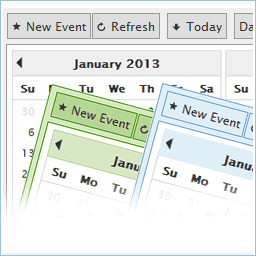
CP Multi View Events Calendar for WordPress Plugin Directory
By codepeople
CP Multi View Events Calendar is the #55 ranked calendar app on WordPress, with a 4.3 average rating from 46 reviews, as of Aug 31, 2026.
CP Multi View Events Calendar is a WordPress Plugin Directory app by codepeople. With a rating of 4.3★ from 46 reviews, it currently ranks #55 in the Calendar category.
AppRanks data: CP Multi View Events Calendar ranks #55 in Calendar on WordPress Plugin Directory, placing it in the top 13% of that category.
AppRanks verdict
Generated from live marketplace data — refreshed daily
CP Multi View Events Calendar is a well-rated WordPress app with a limited review volume. It is listed in the Calendar category on WordPress Plugin Directory, which AppRanks treats as the canonical taxonomy node for ranking and competitor comparison. 46 reviews put it in the early-traction tier — useful for early-stage stores willing to be on the leading edge. Early-traction review counts are sensitive to single launch periods or feature events, so a 30-day re-check before bigger commitments often resolves whether the trend is sustained. Paid-only pricing means evaluating fit on the marketplace listing or via the developer's documentation before installing. AppRanks tracks rating, review count, pricing tier, and category position daily — the figures on this page reflect the most recent scrape from the canonical WordPress Plugin Directory listing.
Pros
- +Published by codepeople — established developer track record
Cons
- −Limited review base (46) — ratings can shift significantly with new feedback
Looking to switch from CP Multi View Events Calendar?
See CP Multi View Events Calendar's alternatives ranked by audit score, rating, and review velocity.
How CP Multi View Events Calendar works
Show full descriptionShow less
CP Multi View Events Calendar is a professional and easy-to-use event calendar plugin for WordPress that allows you to display, organize, and manage events in multiple interactive views — including month, week, day, and multi-month layouts.
This all-in-one calendar and event manager helps you create visually stunning calendars for your website, with customizable styles, colors, and display options. Whether you need a simple events list or a full-featured scheduling solution, CP Multi View Events Calendar gives you the flexibility to do it all.
Perfect for:
– Businesses managing multiple events
– Schools, clubs, and communities
– Bloggers and content creators
– Anyone who needs a customizable, interactive event calendar
👉 Live demo and examples:
View 20 calendar demos and styles
✨ Key Features
Multiple calendar views — Month, Week, Day, and Multi-Month (similar to Google Calendar)
Fully responsive and mobile-friendly event calendars
Support for recurring / repeating events
Fast AJAX loading for smooth calendar navigation
Editable events from the front end or admin area
Multiple event calendars and views on the same page
Customizable colors, fonts, and calendar styles
Tooltips for event details (on hover or click)
Event locations, rich text descriptions, and images
Links from calendar events to custom URLs or pages
12- or 24-hour clock formats
Option to display only selected weekdays
GDPR compliant — no personal data stored unless entered manually
Import / export events with iCal (.ics) format (available in Platinum version)
🌍 Available Languages Czech, Danish, Dutch, English, French, German, Italian, Norwegian, Polish, Portuguese, Russian, Slovak, Slovenian, Spanish.
Don’t see your language? Open a support ticket and we’ll add it quickly!
🆕 Latest Update New: A refreshed interface for easier editing of inserted event calendar views, plus instant preview buttons for faster verification of calendar layouts on your website.
🔁 Import / Export Events (iCal Support) You can easily import and export calendar events using the iCal (.ics) format — fully compatible with Google Calendar.
This feature is available in the Platinum version.
📅 Calendar Insertion Settings To insert the calendar form into some content or post use the insertion area that will appear below the editor when editing contents. It looks like the following image:
https://wordpress.dwbooster.com/UserFiles/Image/cp-multiview-calendar/insert-calendar.png
The fields on the event calendar insertion area (shown in the above image) are the following:
MultiCalendar: Which of the calendars will be shown.
Calendar Views: The views that will be included in the event calendar.
Default View: Which of the calendar views will appear as default.
Start day of the week: The start day of the week (Ex: Sunday, Monday, …).
CSS Style: Select one of the CSS styles available to render the calendar.
Palette Color: The palette color used for the events in the calendar.
Allow edition: Check this box if the event calendar will allow edition on the public website.
Other buttons: Select the buttons that will be displayed on the top of the calendar.
Number of Months for nMonths View: Number of months shown at the same time in the nMonths View.
Other parameters for nMonths View: Other parameters for the nMonths View (more info below).
Other parameters: Other parameters that apply to all calendar views (more info below).
💡 Advanced Customization The additional parameters should be added into the “Other Parameters” box in the event calendar insertion area. These parameters must be comma separated and will overwrite the initial configuration selected for the event calendar.
The “Other Parameters” box can be found in the following location (click to enlarge image): https://wordpress.dwbooster.com/demos/multi-view/screenshots/additional-parameters.png
🎨 Adding custom CSS Styles The custom CSS styles can be added into the “Customization area >> Add Custom Styles” (at the bottom of the page that contains the list of calendars).
🧩 Calendar View Examples The following area some sample views. You can apply or mix configurations to get your own calendar views in addition to the following samples:
View day only: Event calendar configured with the “day” view option only, the “Default View” should be “day”. The views “Week”, “Month”, “nMonth” should be unchecked. To fix the height, just add (for example) the parameter “height:400”. Sample: https://wordpress.dwbooster.com/demos/multi-view/01-view-day-only.html
View week only: Event calendar configured with the view week option only; the “Week” view should be enabled and the default view should be “week”. The views “Day”, “Month” and “nMonth” should be disabled. To fix the height, just add (for example) the parameter “height:400”. Sample: https://wordpress.dwbooster.com/demos/multi-view/02-view-week-only.html
View month only: Event calendar configured with the view month option only. To get this enable the “Month” view and set the default view to “month”. The views “Day”, “Week” and “nMonth” should be unchecked. To fix the height, just add (for example) the parameter “height:400”. Sample: https://wordpress.dwbooster.com/demos/multi-view/03-view-month-only.html
View n-Months only: Event calendar configured with the view n-Months option only. This can be done by setting the amount of months to display in the event calendar to 12, enable only the “n-Month” view and setting the “Default View” to “nMonth”. All the other views and buttons should be unchecked. In the styles for this sample we have selected to fix the calendar width. Sample: https://wordpress.dwbooster.com/demos/multi-view/04-view-n-months-only.html
Small event calendar: You can configure the calendar just like a single small event calendar. This can be done by selecting the n-Months view and setting the “Number of Months for nMonths View” dropdown select box to 1. Sample: https://wordpress.dwbooster.com/demos/multi-view/05-small-calendar.html
n-Month view, only one month, large view: Event calendar with the n-Month view configured to display a single month in a large view. To get this result enable only the “n-Month” view and add the styles specified in the following sample page: https://wordpress.dwbooster.com/demos/multi-view/06-one-month-large-view.html
n-Month view with 2 months using all the width: To get this result in the calendar enable only the “n-Month” view, set the “Number of Months for nMonths View” dropdown select box to 2 and add the styles specified in the following sample page to fix the width of both the event calendar area and the width of each month: https://wordpress.dwbooster.com/demos/multi-view/07-two-months-using-all-the-width.html
n-Month view, 3 months with vertical align: The first settings needed to get this calendar configuration is to enable only the “n-Month” view and set the “Number of Months for nMonths View” dropdown select box to show 3 months. After that proceed to add some CSS styles to fix the width to the desired column width. This way you can publish the calendar in the sidebar of your website. Sample: https://wordpress.dwbooster.com/demos/multi-view/08-various-months-with-vertical-align.html
Tooltip displayed on month,week and day view: In this event calendar sample, when you click over an event in the calendar, a floating tooltip panel with additional information is displayed. This type of tooltip is available for the month, week and day views. The n-Month view has a different type of tooltip panel. To enable the tooltips, the parameter “showtooltipdwm” must be set to “true” (or enable it by checking the checkbox in the visual configuration). In addition to these parameters, add also the styles mentioned in the following page as instructed: https://wordpress.dwbooster.com/demos/multi-view/09-tooltip-displayed.html
Lighter view for events and center align: This calendar sample features the month, week and day views showing the events with a more lighter view: a color border is used instead filled backgrounds and the text is centered. The tooltips are already enabled for this sample; to enable the tooltips you can do that by checking the tooltip checkbox in the visual configuration or just by setting parameter “showtooltipdwm” to “true”, this is also explained in other demos. To get the more lighter view you can add the styles indicated at this page: https://wordpress.dwbooster.com/demos/multi-view/10-lighter-view-center-align.html
Multi-line event description: Event calendar that displays a multi-line event description in the month, week and day views, this is useful to display more information directly over the calendar. Only two CSS rules should be added to the styles to get this configuration. It will work with any selection of parameters if you are using one of the mentioned views. Check the detailed instructions at this page: https://wordpress.dwbooster.com/demos/multi-view/11-multi-line-event-description.html
Images and HTML formatting in tooltip: The tooltips on the calendar can show images and formatted text. There are some styles that can be used to show/hide/customize the title, location, description and time: these styles are the CSS classes named “bubbletitle”, “bubblelocation”, “bubbledescription” and “bubbletime”. In this sample we have used only the class “bubbletime” to align it at the bottom of the content/image: https://wordpress.dwbooster.com/demos/multi-view/12-images-and-html-formatting-in-tooltip.html
Images directly on the calendar cells: You can use this plugin like a picture calendar. The images should be added to the event description and the css rules mentioned in the following page to complete the formatting: https://wordpress.dwbooster.com/demos/multi-view/13-images-directly-on-the-calendar-cells.html
Show only from Monday to Friday: In this event sample we have disabled the Saturday and Sunday since this is a common configuration. In the “viewWeekDays” parameter, each number in the array represents a weekday from Sunday to Saturday. An zero means that the weekday is disabled (not shown) and a 1 means that the day is enabled (shown). Details at: https://wordpress.dwbooster.com/demos/multi-view/14-show-only-from-monday-to-friday.html
Using 12 or 24 hour clock: This calendar supports both the 12 and the 24 hour clock (also known as military time). The 24-hour clock is enabled as default; if you prefer to use the 12-hour clock then just set the parameter “militaryTime” to “false”. Sample: https://wordpress.dwbooster.com/demos/multi-view/15-using-12-or-24-hour-clock.html
Showing the n-Days view: With this event calendar view you can display many days in a view similar to the single day view. First you should enable the “nDays” view and then set the number of days to view on each calendar page. The parameters are viewNDays:true for enabling the view, numberOfDays:10 for setting the number of days and viewdefault:”nDays” to make it the default view if needed. Sample: https://wordpress.dwbooster.com/demos/multi-view/16-n-days-view.html
Selecting hours to be shown: In some applications you may want to select only some hours to be shown in the event calendar, for example working hours. In the “Days”, “nDays” and “Week” views you can select the range of hours to be shown be setting the start and end hours. Three parameters must be specified for this: the start hour hoursStart:8, the end hour hoursEnd:17 and the height of a single hour cell cellheight:60. Hours are in military time, so 17 means 5:00pm. Sample: https://wordpress.dwbooster.com/demos/multi-view/17-selecting-hours-to-be-shown.html
Using drop-down lists for location and title: The location and title that are part of each event’s description in the calendar are open/editable fields by default but you can convert them in drop-down lists to make them easier to edit and keep the data consistency. Sample and detailed instructions: https://wordpress.dwbooster.com/demos/multi-view/18-lists-for-location-and-title.html
Multi-column day view, location or title: In this event calendar sample the location and title have been converted in drop-down lists as explained in the previous sample #18. In addition to that now we have selected to use the “title” field as the column header in the day view, this way the events are placed in different columns agrupated by their titles. The same can be done with the location instead the title. Sample and detailed instructions: https://wordpress.dwbooster.com/demos/multi-view/19-multi-column-day-view.html
Day view with location & title grid: The event calendar day view can be modified to show the title and location as headers of the rows and column instead the default single columns and the hour in the row header. This is useful to display informations agrupated by title and location on each day. Sample and detailed instructions: https://wordpress.dwbooster.com/demos/multi-view/20-day-view-with-location-title-grid.html
Category rankings
As of Sep 6, 2026- Calendar#55of 434Top 13%
See 90-day rank history for each category
Track daily rank changes, category shifts, and position volatility.
Competitors & alternatives
CP Multi View Events Calendar doesn't have curated competitor matchups yet. Other tracked calendar apps on WordPress:





Where CP Multi View Events Calendar stands in the Calendar category
CP Multi View Events Calendar ranks #55 of 434 apps in the Calendar category, placing it in the top 13% of the listing.
Frequently asked questions
What is CP Multi View Events Calendar?
CP Multi View Events Calendar is an app for WordPress. It currently holds a 4.3-star rating from 46 merchant reviews, and AppRanks has been tracking its public marketplace data on the refresh cadence published in our methodology. It is listed under the Calendar category on AppRanks, where you can see its current category position, review-velocity trend, and how it compares against the top alternatives in the same space. Developed by codepeople.
Who uses CP Multi View Events Calendar?
Currently around 900 active stores have installed CP Multi View Events Calendar. Its review base is still building, which usually maps to early-stage merchants and stores piloting a new workflow. It is part of the Calendar category on WordPress.
Where does CP Multi View Events Calendar rank on WordPress?
CP Multi View Events Calendar currently sits at position #55 in the Calendar category on WordPress. That places it in the top 13% of 434 apps tracked in the same category. Category positions are read from the live marketplace ranking and refresh on each scrape, so the number you see here reflects the most recent crawl rather than a long-running average.