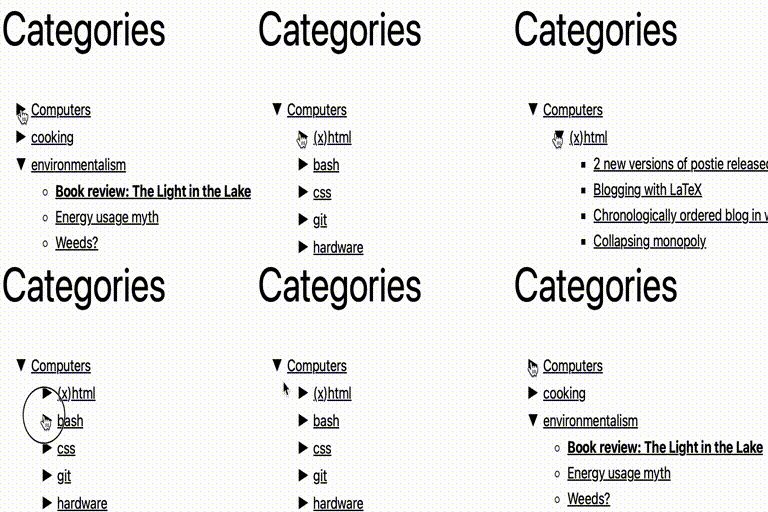
Collapsing Categories
Collapsing Categories creates an expandable list of categories and subcategories. It can also expand to show posts. The primary usage is as a widget, but you can also use the code in your theme manually if you wish (see installation instructions) Options Options can be set from the block panel. If you wish to insert the code into your theme manually instead of using a widget, you can use the following options. These options can be given to the collapsCat() function either as an array or in query style, in the same manner as the wp_list_categories function. $defaults=array( 'showPostCount' => true, 'inExclude' => 'exclude', 'inExcludeCats' => '', 'showPosts' => true, 'showPages' => false, 'linkToCat' => true, 'olderThan' => 0, 'excludeAll' => '0', 'catSortOrder' => 'ASC', 'catSort' => 'catName', 'postSortOrder' => 'ASC', 'postSort' => 'postTitle', 'expand' => '0', 'defaultExpand' => '', 'postTitleLength' => 0, 'accordion' => 0, 'catfeed' => 'none', 'taxonomy' => 'category', 'showPostDate' => false, 'postDateAppend' => 'after', 'postDateFormat' => 'm/d', 'useCookies' => true, 'showTopLevel' => true, 'postsBeforeCats' => false, 'expandCatPost' => true, 'debug'=>'0' ); inExclude Whether to include or exclude certain categories ‘exclude’ (default) ‘include’ inExcludeCats The categories which should be included or excluded showPages Whether or not to include pages as well as posts. Default if false linkToCat 1 (true), clicking on a category title will link to the category archive (default) 0 (false), clicking on a category title expands and collapses catSort How to sort the categorys. Possible values: ‘catName’ the title of the category (default) ‘catId’ the Id of the category ‘catSlug’ the url of the category ‘catCount’ the number of posts in the category ‘catOrder’ custom order specified in the categorys settings catSortOrder Whether categories should be sorted in normal or reverse order. Possible values: ‘ASC’ normal order (a-z 0-9) (default) ‘DESC’ reverse order (z-a 9-0) postSort How to sort the posts. Possible values: ‘postDate’ the date of the post (default) ‘postId’ the Id of the post ‘postTitle’ the title of the post ‘postComment’ the number of comments on the post ‘postOrder’ sort by menu order postSortOrder Whether post should be sorted in normal or reverse order. Possible values: ‘ASC’ normal order (a-z 0-9) (default) ‘DESC’ reverse order (z-a 9-0) expand The symbols to be used to mark expanding and collapsing. Possible values: ‘0’ Triangles (default) ‘1’ + – ‘2’ [+] [-] ‘3’ images (you can upload your own if you wish) ‘4’ custom symbols customExpand If you have selected ‘4’ for the expand option, this character will be used to mark expandable link categories customCollapse If you have selected ‘4’ for the expand option, this character will be used to mark collapsible link categories postTitleLength Truncate post titles to this number of characters (default: 0 = don’t truncate) accordion When set to true, expanding one category closes all others at that level catfeed Whether to add a link to the rss feed for a category. Possible values: ‘none’ (default) ‘text’ shows RSS ‘image’ shows an RSS icon taxonomy Type of taxonmy to display. Possible values: ‘category’ (default) ‘link_category’ ‘post_tag’ ‘both’ (categories and tags) any other registered taxononmy (e.g. recipe press uses recipe-categories) showPostDate When true, show the date of each post postDateAppend Show the date before or after the post title. Possible values: ‘after’ (default) ‘before’ postDateFormat What format the post date is in. This uses the standard php date formatting codes useCookies When true, expanding and collapsing of categories is remembered for each visitor. When false, categories are always display collapsed (unless explicitly set to auto-expand). Possible values: 1 (true) (default) 0 (false) showTopLevel When set to false, the top level category will not be shown. This could be useful if you only want to show subcategories from one particular top-level category 1 (true) (default) 0 (false) postsBeforeCats When set to true, posts in category X will be ordered before subcategories of category X 1 (true) 0 (false) (default) expandCatPost When set to true, any category to which a post is assigned will automatically be expanded on a single post page. 1 (true) (default) 0 (false) showEmptyCat When set to true, empty categories are shown 0 (false) (default) 1 (true) debug When set to true, extra debugging information will be displayed in the underlying code of your page (but not visible from the browser). Use this option if you are having problems Examples collapsCat('catSort=ASC&expand=3&inExcludeCats=general,uncategorized') This will produce a list with: * categories shown in alphabetical order * using images to mark collapsing and expanding * exclude posts from the categories general and uncategorized ` ‘postDate’, ‘postSortOrder’ => ‘DESC’, ) ); } else { wp_get_categories(‘your_options_here’); } echo “ \n”; ?> ` Demo I use this plugin in my blog at http://robfelty.com CAVEAT Currently this plugin relies on Javascript to expand and collapse the links. If a user’s browser doesn’t support javascript they won’t see the links to the posts, but the links to the categories will still work (which is the default behavior in wordpress anyways)
Top keywords
- true19×2.36%
- default18×2.24%
- categories16×1.99%
- category16×1.99%
- false12×1.49%
- post12×1.49%
- order9×1.12%
- possible9×1.12%
- possible values9×1.12%
- values9×1.12%
- set8×0.99%
- posts7×0.87%
TablePress – Tables in WordPress made easy
Boost your website with feature-rich tables that your visitors will love! TablePress is the most popular and highest-rated WordPress table plugin. Easily create, edit, and manage beautiful and modern data tables, from simple price lists to searchable directories, product and model tables, inventories, schedules, and research datasets. Add live sorting, pagination, searching, and other interactive features that help visitors find what they’re looking for on any device. Use any type of data and enrich your tables with images, links, and even math formulas. Import and export tables from/to Excel, CSV, HTML, and JSON files or URLs, including spreadsheet data from Google Sheets, Excel Online, and files stored on Dropbox or OneDrive. Embed tables into posts, pages, or other site areas using the block editor, an Elementor widget, or Shortcodes. All with no coding knowledge needed! Even more great features for you and your site’s visitors and priority email support are available with a Premium license plan of TablePress. Go check them out! Common use cases TablePress will handle a wide range of tables, from simple price lists to searchable directories and large datasets. Popular examples include: Product and model tables Service and price lists Directories and listings Schedules and timetables Participant and member lists Inventories and collections Comparison tables Research and statistical data Accessible and SEO-friendly tables TablePress creates accessible HTML tables whose content can be searched by visitors, WordPress search, and search engines alike. Interactive features like sorting, filtering, and pagination include accessibility enhancements for screen readers and other assistive technologies. This makes it easy for visitors to find relevant information, whether they are browsing a large directory, searching a product table, or using your site’s search function. More information Visit tablepress.org for more information, take a look at example tables, or try TablePress on a free test site. For latest news, follow @TablePress on Twitter/X or subscribe to the TablePress Newsletter. How to use TablePress After installing the plugin, you can create and manage tables on the “TablePress” screen in the WordPress Dashboard. To insert a table into a post or page, add a “TablePress table” block in the block editor or a widget in the Elementor page builder and select the desired table or use Shortcodes with other page builders. Beginner-friendly step-by-step tutorials, guides, and how-tos show how to achieve common and popular tasks with TablePress. You can find examples for common styling changes via “Custom CSS” code on the TablePress FAQ page. You may also add features like sorting, pagination, searching, filtering, alternating row colors, row highlighting, and more by enabling the corresponding options on a table’s “Edit” screen. Premium features Need additional functionality for larger tables or advanced use cases? Premium license plans for TablePress add features such as: Options for responsive tables Advanced filtering and search Fixed table headers and columns Automatic periodic imports Custom styling options And much more Priority email support is also included. Check out the details on the TablePress website.