Tax Switch for WooCommerce
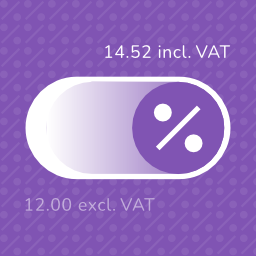
Tax Switch for WooCommerce enhances your WooCommerce store by allowing users to toggle between displaying prices including or excluding VAT. This plugin adds a customizable switch component and provides a flexible way to display both price versions. Key features Display customizable switches where you want Gutenberg block support Shortcode for easy integration (including shortcode generator) Flexible display options for prices with and without VAT Remembers the user’s preference for future visits Choose between a toggle switch or buttons For more information about this plugin, please visit the plugin page. Requirements WooCommerce plugin installed and activated WooCommerce tax calculations enabled and configured Configuration Configure the plugin settings below for proper functionality. WooCommerce settings Ensure these WooCommerce settings are configured first: Configure tax calculations Go to: WooCommerce > Settings > General Verify your shop address is complete Enable “Enable tax rates and calculations” Set “Default customer location” to “Shop base address” Set up tax rates Go to: WooCommerce > Settings > Tax > Standard Rates Add your regional tax rates Recommended: tax calculation method Go to: WooCommerce > Settings > Tax Set “Calculate tax based on” to “Shop base address” (This provides instant tax calculation. Other methods require customers to enter their address first.) Individual product configuration Edit products at: Products > [Product] Under Product Data > Tax, set status to “Taxable” Plugin settings Configure these plugin-specific settings: Main settings Go to: WooCommerce > Settings > Tax Switch Set your preferred text values Optional: Restrict display locations Optional: Generate a shortcode via WooCommerce > Settings > Tax Switch > Shortcode Usage After installation and configuration, you can add the tax switch to your pages in two ways: Use the Gutenberg block “Tax Switch for WooCommerce” in your page or post editor. Use the shortcode [wdevs_tax_switch] anywhere in your content. Shortcode Usage Switch/buttons Basic usage: [wdevs_tax_switch] Displays a switch to toggle displaying prices including or excluding VAT. The shortcode accepts several attributes to customize its appearance and behavior: class-name: Adds custom CSS classes to the switch. Default: is-style-default Options: is-style-default, is-style-inline, is-style-flat-pill, or custom classes switch-type: Determines the style of the toggle. Default: switch Options: switch, buttons switch-color: Sets the color of the switch handle. switch-color-checked: Sets the color of the switch when it’s in the “on” position. switch-background-color: Sets the background color of the switch. switch-text-color: Sets the text color of the switch labels. switch-background-color-checked: Sets the background color of the switch when it’s in the “on” position. switch-label-incl: Sets the text for the “including VAT” label. Default: Uses the text set in the plugin settings or “Incl. VAT” if not set. switch-label-excl: Sets the text for the “excluding VAT” label. Default: Uses the text set in the plugin settings or “Excl. VAT” if not set. switch-aria-label: Sets the aria label of the switch. Default: Uses the text set in the plugin settings or “Switch between prices including and excluding VAT” if not set. Example with custom attributes: [wdevs_tax_switch class-name="is-style-inline" switch-type="switch" switch-color="#ffffff" switch-color-checked="#000000" switch-background-color="#000000" switch-background-color-checked="#4CAF50" switch-text-color="#FF0000" switch-label-incl="Incl. tax" switch-label-excl="Excl. tax" switch-aria-label="Switch between prices including and excluding VAT"] Label Basic usage: [wdevs_tax_switch_label] Displays text indicating the currently selected tax setting. The text updates automatically when the tax switch is toggled. The shortcode accepts several attributes to customize its appearance and behavior: class-name: Adds custom CSS classes to the label. Default: is-style-default Options: is-style-default or custom classes label-text-incl: Sets the text to display when “including VAT” is selected. Default: Uses the text set in the plugin settings or “Incl. VAT” if not set. label-text-excl: Sets the text to display when “excluding VAT” is selected. Default: Uses the text set in the plugin settings or “Excl. VAT” if not set. label-text-color: Sets the “excluding VAT” text color. label-text-color-checked: Sets the “including VAT” text color. Example with custom attributes: [wdevs_tax_switch_label class-name="tax-indicator" label-text-incl="Prices include tax" label-text-excl="Prices exclude tax" label-text-color="#FF0000" label-text-color-checked="#4CAF50"] PHP implementation You can use these shortcodes with PHP with the do_shortcode() function: JavaScript API Tax Switch provides a small frontend JavaScript API for custom integrations, such as buttons, preference popups, or other flows where visitors choose whether they want to see prices including or excluding VAT. if ( window.wdevsTaxSwitch && ! window.wdevsTaxSwitch.hasSavedChoice() ) { window.wdevsTaxSwitch.setDisplay( 'incl', { respectExistingChoice: true, } ); } API methods: * hasSavedChoice(): returns whether the visitor already has a saved switch choice. * getDisplay(): returns the current display, either 'incl' or 'excl'. * setDisplay( display, options ): changes the display to 'incl' or 'excl'. * toggle( options ): toggles between inclusive and exclusive VAT display. Options: * respectExistingChoice: boolean – preserves an existing saved visitor choice. Set respectExistingChoice to true when you only want to apply a default if the visitor has not already made a saved choice. You can also request a display change by dispatching an event. This is useful when your integration is event-driven. document.dispatchEvent( new CustomEvent( 'wdevs-tax-switch-context-changed', { detail: { display: 'incl', respectExistingChoice: true, }, } ) ); Detail properties: * display: 'incl' | 'excl' | 'toggle' – requested tax display. * respectExistingChoice: boolean – preserves an existing saved visitor choice. JavaScript events The switch fires a JavaScript event when the tax display changes. You can listen for this event to execute custom code when a user switches between inclusive and exclusive VAT display. This is useful for when you need to perform additional actions based on the tax display state. document.addEventListener( 'wdevs-tax-switch-changed', function( event ) { console.log( event.detail ); } ); Detail properties: * isSwitched: boolean – the raw switch state. * displayIncludingVat: boolean – whether prices now display including VAT. If you are loading the switch dynamically (via AJAX), dispatch this event after rendering to initialize the component: document.dispatchEvent( new CustomEvent( 'wdevs-tax-switch-appeared' ) ); WPML To translate the option texts via WPML: Save your options first in: WooCommerce -> Settings -> Tax Switch Then translate the texts in: WPML -> String Translations and search for your option values in the domain ‘tax-switch-for-woocommerce’ Compatibility This plugin integrates with WooCommerce’s standard filters and actions for price display and calculation. While most plugins and themes work out of the box, some third-party code use custom price building methods that require specific compatibility integrations. The following themes have been tested and confirmed compatible: GeneratePress Blocksy Thrive Flatsome Kapee Entr Woodmart Hello Elementor The following plugins have been tested and confirmed compatible: WooCommerce Product Table Lite (+ PRO) Tiered Pricing Table for WooCommerce (+ Premium) Measurement Price Calculator for WooCommerce Discount Rules for WooCommerce YITH WooCommerce Product Add-Ons (+ & Extra Options Premium) JetEngine Listing Grid (Elementor) Product Add-Ons for WooCommerce B2BKing – Ultimate WooCommerce Wholesale and B2B Solution (+ Premium) Advanced Product Fields Pro for WooCommerce WooCommerce Quantity Discounts, Rules & Swatches FacetWP Variation Swatches for WooCommerce (+ PRO) Variation Price Display Range for WooCommerce (+ PRO) WooCommerce Product Add-Ons Ultimate Advanced Woo Search (+ PRO) B2B Market FiboFilters Extra Product Options & Add-Ons for WooCommerce FiboSearch – Ajax Search for WooCommerce (+ Pro) YayMail – WooCommerce Email Customizer PDF Invoices & Packing Slips for WooCommerce WooCommerce Product Bundles LiteSpeed Cache Elementor Pro YITH WooCommerce Role Based Prices WooCommerce Dynamic Pricing and Discount Rules Price Based on Country for WooCommerce WP Grid Builder If you encounter any compatibility issues with other plugins or themes, please let us know. Your feedback helps us improve the plugin and extend compatibility to more third-party solutions. Incompatibility After multiple attempts to create compatibility functions, reaching out to the plugin developers several times, and still finding no viable solution, the following plugins remain incompatible: Unlimited Elements for Elementor (+ Pro): AJAX pagination and filtering issues Barn2: WooCommerce Product Options Additional Information This plugin is fully open source. You can find the source code on GitHub For more information and other WordPress plugins, visit Wijnberg Developments.
Top keywords
- woocommerce35×2.79%
- switch33×2.63%
- tax32×2.55%
- display20×1.60%
- vat19×1.52%
- settings17×1.36%
- set16×1.28%
- text15×1.20%
- tax switch13×1.04%
- sets12×0.96%
- options11×0.88%
- product11×0.88%
CodeMirror Blocks
CodeMirror Blocks is useful for developers blog, tutorial site where to display formatted (highlighted) code of any program. It supports 100+ Programming, Scripting and MarkUp Language, with 56 Different Themes. The Code Block is dependent on a CodeMirror library. Formatted Code Block is like (syntax highlighting feature) that displays source code, in different colors and fonts according to the category of terms. It is one strategy to improve the readability and context of the text; especially for code that spans several pages. The reader can easily ignore large sections of comments or code, depending on what they are looking for. This plugin is just plug and play, no tedious configurations or hacks, just install, activate and start using block inserter. Features Control Panel Added on top of the Code Block. ** It displays language/filename. ** It also display three buttons, includes Run/Execute, FullScreen, Copy Code. Web editor (Execution of HTML, CSS JavaScript block) With CodeMirror Block 1.1 Option Page for set default options Highlight Active Line (now available on CodeMirror Block 1.1) CodeMirror Block 1.1 now support Block align (Wide Width, Full Width) if your theme Supports. Classic Editor Support (Partial) Lightweight and fast Secure code with using clear coding standards Intuitive interface with many settings Cross browser compatible (work smooth in any modern browser) Works also on android mobile browser Compatible with all Default WordPress themes (tested with Latest Twenty Twenty-Four) Twenty Twenty-Four Twenty Twenty-Three Twenty Twenty-Two Twenty Twenty-One Twenty Twenty Also Compatible with other third-party themes. Key features include Code syntax highlighting Line number (On/Off) option 56 Themes (all provided themes from CodeMirror) 100+ Programming languages (all most provided languages from CodeMirror) Programming language selection option Loading CodeMirror files on pages only when needed A list of supported themes: 3024 day 3024 night Ambiance mobile Ambiance Base16 dark Base16 light Blackboard Cobalt Colorforth Eclipse Elegant Erlang dark Lesser dark Liquibyte MBO MDN-like Midnight Monokai Neat Neo Night Paraiso dark Paraiso light Pastel on dark Rubyblue Reactjs.org Theme Solarized The matrix Tomorrow night bright Tomorrow night eighties TTCN Twilight Vibrant ink XQ dark XQ light Zenburn Credits This Plugin use CodeMirror library to highlight Code Blocks. CodeMirror is an open-source project shared under the MIT license.
Top keywords
- code11×2.96%
- codemirror10×2.69%
- block