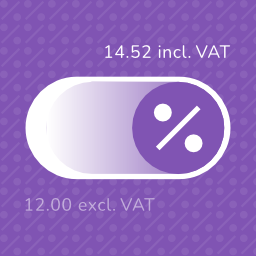
Tax Switch for WooCommerce
Tax Switch for WooCommerce enhances your WooCommerce store by allowing users to toggle between displaying prices including or excluding VAT. This plugin adds a customizable switch component and provides a flexible way to display both price versions. Key features Display customizable switches where you want Gutenberg block support Shortcode for easy integration (including shortcode generator) Flexible display options for prices with and without VAT Remembers the user’s preference for future visits Choose between a toggle switch or buttons For more information about this plugin, please visit the plugin page. Requirements WooCommerce plugin installed and activated WooCommerce tax calculations enabled and configured Configuration Configure the plugin settings below for proper functionality. WooCommerce settings Ensure these WooCommerce settings are configured first: Configure tax calculations Go to: WooCommerce > Settings > General Verify your shop address is complete Enable “Enable tax rates and calculations” Set “Default customer location” to “Shop base address” Set up tax rates Go to: WooCommerce > Settings > Tax > Standard Rates Add your regional tax rates Recommended: tax calculation method Go to: WooCommerce > Settings > Tax Set “Calculate tax based on” to “Shop base address” (This provides instant tax calculation. Other methods require customers to enter their address first.) Individual product configuration Edit products at: Products > [Product] Under Product Data > Tax, set status to “Taxable” Plugin settings Configure these plugin-specific settings: Main settings Go to: WooCommerce > Settings > Tax Switch Set your preferred text values Optional: Restrict display locations Optional: Generate a shortcode via WooCommerce > Settings > Tax Switch > Shortcode Usage After installation and configuration, you can add the tax switch to your pages in two ways: Use the Gutenberg block “Tax Switch for WooCommerce” in your page or post editor. Use the shortcode [wdevs_tax_switch] anywhere in your content. Shortcode Usage Switch/buttons Basic usage: [wdevs_tax_switch] Displays a switch to toggle displaying prices including or excluding VAT. The shortcode accepts several attributes to customize its appearance and behavior: class-name: Adds custom CSS classes to the switch. Default: is-style-default Options: is-style-default, is-style-inline, is-style-flat-pill, or custom classes switch-type: Determines the style of the toggle. Default: switch Options: switch, buttons switch-color: Sets the color of the switch handle. switch-color-checked: Sets the color of the switch when it’s in the “on” position. switch-background-color: Sets the background color of the switch. switch-text-color: Sets the text color of the switch labels. switch-background-color-checked: Sets the background color of the switch when it’s in the “on” position. switch-label-incl: Sets the text for the “including VAT” label. Default: Uses the text set in the plugin settings or “Incl. VAT” if not set. switch-label-excl: Sets the text for the “excluding VAT” label. Default: Uses the text set in the plugin settings or “Excl. VAT” if not set. switch-aria-label: Sets the aria label of the switch. Default: Uses the text set in the plugin settings or “Switch between prices including and excluding VAT” if not set. Example with custom attributes: [wdevs_tax_switch class-name="is-style-inline" switch-type="switch" switch-color="#ffffff" switch-color-checked="#000000" switch-background-color="#000000" switch-background-color-checked="#4CAF50" switch-text-color="#FF0000" switch-label-incl="Incl. tax" switch-label-excl="Excl. tax" switch-aria-label="Switch between prices including and excluding VAT"] Label Basic usage: [wdevs_tax_switch_label] Displays text indicating the currently selected tax setting. The text updates automatically when the tax switch is toggled. The shortcode accepts several attributes to customize its appearance and behavior: class-name: Adds custom CSS classes to the label. Default: is-style-default Options: is-style-default or custom classes label-text-incl: Sets the text to display when “including VAT” is selected. Default: Uses the text set in the plugin settings or “Incl. VAT” if not set. label-text-excl: Sets the text to display when “excluding VAT” is selected. Default: Uses the text set in the plugin settings or “Excl. VAT” if not set. label-text-color: Sets the “excluding VAT” text color. label-text-color-checked: Sets the “including VAT” text color. Example with custom attributes: [wdevs_tax_switch_label class-name="tax-indicator" label-text-incl="Prices include tax" label-text-excl="Prices exclude tax" label-text-color="#FF0000" label-text-color-checked="#4CAF50"] PHP implementation You can use these shortcodes with PHP with the do_shortcode() function: JavaScript API Tax Switch provides a small frontend JavaScript API for custom integrations, such as buttons, preference popups, or other flows where visitors choose whether they want to see prices including or excluding VAT. if ( window.wdevsTaxSwitch && ! window.wdevsTaxSwitch.hasSavedChoice() ) { window.wdevsTaxSwitch.setDisplay( 'incl', { respectExistingChoice: true, } ); } API methods: * hasSavedChoice(): returns whether the visitor already has a saved switch choice. * getDisplay(): returns the current display, either 'incl' or 'excl'. * setDisplay( display, options ): changes the display to 'incl' or 'excl'. * toggle( options ): toggles between inclusive and exclusive VAT display. Options: * respectExistingChoice: boolean – preserves an existing saved visitor choice. Set respectExistingChoice to true when you only want to apply a default if the visitor has not already made a saved choice. You can also request a display change by dispatching an event. This is useful when your integration is event-driven. document.dispatchEvent( new CustomEvent( 'wdevs-tax-switch-context-changed', { detail: { display: 'incl', respectExistingChoice: true, }, } ) ); Detail properties: * display: 'incl' | 'excl' | 'toggle' – requested tax display. * respectExistingChoice: boolean – preserves an existing saved visitor choice. JavaScript events The switch fires a JavaScript event when the tax display changes. You can listen for this event to execute custom code when a user switches between inclusive and exclusive VAT display. This is useful for when you need to perform additional actions based on the tax display state. document.addEventListener( 'wdevs-tax-switch-changed', function( event ) { console.log( event.detail ); } ); Detail properties: * isSwitched: boolean – the raw switch state. * displayIncludingVat: boolean – whether prices now display including VAT. If you are loading the switch dynamically (via AJAX), dispatch this event after rendering to initialize the component: document.dispatchEvent( new CustomEvent( 'wdevs-tax-switch-appeared' ) ); WPML To translate the option texts via WPML: Save your options first in: WooCommerce -> Settings -> Tax Switch Then translate the texts in: WPML -> String Translations and search for your option values in the domain ‘tax-switch-for-woocommerce’ Compatibility This plugin integrates with WooCommerce’s standard filters and actions for price display and calculation. While most plugins and themes work out of the box, some third-party code use custom price building methods that require specific compatibility integrations. The following themes have been tested and confirmed compatible: GeneratePress Blocksy Thrive Flatsome Kapee Entr Woodmart Hello Elementor The following plugins have been tested and confirmed compatible: WooCommerce Product Table Lite (+ PRO) Tiered Pricing Table for WooCommerce (+ Premium) Measurement Price Calculator for WooCommerce Discount Rules for WooCommerce YITH WooCommerce Product Add-Ons (+ & Extra Options Premium) JetEngine Listing Grid (Elementor) Product Add-Ons for WooCommerce B2BKing – Ultimate WooCommerce Wholesale and B2B Solution (+ Premium) Advanced Product Fields Pro for WooCommerce WooCommerce Quantity Discounts, Rules & Swatches FacetWP Variation Swatches for WooCommerce (+ PRO) Variation Price Display Range for WooCommerce (+ PRO) WooCommerce Product Add-Ons Ultimate Advanced Woo Search (+ PRO) B2B Market FiboFilters Extra Product Options & Add-Ons for WooCommerce FiboSearch – Ajax Search for WooCommerce (+ Pro) YayMail – WooCommerce Email Customizer PDF Invoices & Packing Slips for WooCommerce WooCommerce Product Bundles LiteSpeed Cache Elementor Pro YITH WooCommerce Role Based Prices WooCommerce Dynamic Pricing and Discount Rules Price Based on Country for WooCommerce WP Grid Builder If you encounter any compatibility issues with other plugins or themes, please let us know. Your feedback helps us improve the plugin and extend compatibility to more third-party solutions. Incompatibility After multiple attempts to create compatibility functions, reaching out to the plugin developers several times, and still finding no viable solution, the following plugins remain incompatible: Unlimited Elements for Elementor (+ Pro): AJAX pagination and filtering issues Barn2: WooCommerce Product Options Additional Information This plugin is fully open source. You can find the source code on GitHub For more information and other WordPress plugins, visit Wijnberg Developments.
Top keywords
- woocommerce35×2.79%
- switch33×2.63%
- tax32×2.55%
- display20×1.60%
- vat19×1.52%
- settings17×1.36%
- set16×1.28%
- text15×1.20%
- tax switch13×1.04%
- sets12×0.96%
- options11×0.88%
- product11×0.88%
Discount Rules for WooCommerce
Discount Rules for WooCommerce is a dynamic pricing and discounts plugin for WooCommerce that helps you create any type of bulk discounts, quantity discounts, product specific discounts, dynamic pricing, advanced discounts based on conditions, percentage discounts, tiered pricing discounts and more. With the PRO version, you can create advanced discount offers such as buy one and get one free (BOGO) deals, auto-apply coupons, free shipping discounts, bundle offers, discounts based on products, categories, attributes, tags, SKUs, user roles, cart items, purchase history and much more. The plugin offers a number of features that make it easy for customers to discover discounts and offers in your store: Show a bulk discount table on your product pages. This helps customers buy more in order to save more. Show the discounted price on product, cart & checkout pages with the original price crossed-out (with a line-through) Display “You saved” message on the cart & checkout pages Show a discount bar with your offers on the product pages Display a Sale badge on your shop & product pages View Demo | Documentation with examples | Ask Questions | PRO version | Examples DISCOUNT TYPES AND FEATURES WITH EXAMPLE SCENARIOS Free version features Create percentage discounts. Offer a storewide sale Example: A storewide 10% discount on all products Create bulk discounts. Example: Use quantity breaks to offer higher discounts on bulk purchases. Order total based discounts (Example: Spend more than $1000, get 10% discount) Set product specific percentage discounts (Example: Product A gets 10%, Product B gets 20%) Cart based discounts using the line items (Example: Purchase 4 different products or variants and get 10% discount) Exclude selected products from discount rules (product pricing discounts) Run special offers / sale for specific periods – Example: 10% discount only on BlackFriday Show bulk discount table on product pages Get the PRO version to create advanced discounts and grow sales PRO features All features of the free version, plus: Percentage discounts with advanced discount conditions. Fixed product discounts. Example: Get $9 discount for purchasing more than 6 items Category discounts – Get 25 % off on all items under Summer Collection Buy One Get One free offers – Buy a cap and get another cap for free Buy 2 and get 1 free offers – Buy 2 get 1 cheapest product free or Buy 2 and get 1 at 50% discount Buy one get one half off – Buy 2 get 1 at 50% off or buy one get the second product free or at 50% discount BOGO deals based on categories. Examples: Buy any product from Category A and get a product free from Category B. Buy Product A and Product B from Category Electronics and get a free product from category Accessories. Buy any product from Category Mobile and choose a free product from Category Hard Cases Volume discounts & tiered quantity discounts with conditions – Buy 6, get 10%, Buy 12, get 15% User role based discounts – Discounts for wholesale customers First order discount Product discounts with variant specific offers – Buy Product A with Variant X and get 10% discount Bundle discount – Buy 3 for $10, 6 for $20 Conditional discounts – Buy Product A and B and get discount on Product C Offer one or more free products. Multiple products could be offered free using a rule Apply discounts for multiple items using one coupon code Discount for product variants Attributes based discounts – Buy green color T-shirts and get 10% discount Discount for customers with specific domains – 10% discount for all emails ending with @example.com Customer specific discounts – 10% discount for selected customers Free shipping discount Shipping / Delivery location based discount Example: If shipping destination is California, get 15% discount Purchase history based discounts Example: Customers who spent at least $100 in previous purchases get 10% discount Discount based on the number of orders placed earlier. Example: 10% discount for customers with 5 or more orders Discount based on previously purchased products. Example: Customers who previously purchased Shoes get 10% discount Discounts based on sum of item quantities in cart – Order more than 10 items from any category and get 15 % discount Discount for the cheapest item in the cart – Add 3 products to the cart and get the Cheapest Item free Option to offer free products only from certain category Exclude products on SALE from discount rules SALE Badge for discounted products Highlight savings on the cart & checkout with “You saved” label Use a discount banner to highlight offers on product pages Option to show or hide the discounted price Priority support Discount Examples using PRO Features Category Discount The category discount feature allows you to offer discounts on all products in one or more categories. Simply choose one or more categories, set your discount offers, and the plugin will apply them automatically to every product in those categories. Here are some examples: Buy T-shirts from Apparel category and save 10% Get 30% off on Category A & Category B Purchase any 6 items from Category A and get a 25% discount on total cart value. Purchase 3 products from Category A or B or C or from all of them and get 20% discount valid from dd/mm/yyyy to dd/mm/yyyy Bulk Discount / Quantity Discount / Tiered Pricing Discounts Bulk Discount, also known as quantity discounts, tiered pricing discounts or volume discounts, allows you to reward customers for buying in bulk. As customers purchase more, they receive better pricing, encouraging bulk purchases. Here are some bulk discount examples: Buy 5 to 10 quantities, get 5% discount, 11-20 quantities, get 10% discount, 21-30, get 20% discount Buy 1 to 5 quantities, get $2 discount, Buy 6 or more, get $3 discount Storewide Sale Discount A Storewide Sale discount allows you to apply discounts on all products in your store, offering a simple yet powerful way to drive sales. Whether you’re running a seasonal sale, clearing out inventory, or rewarding loyal customers, a storewide discount makes it easy for shoppers to save on everything in your store. 20% discount on all products in the store on Black Friday or Christmas Auto apply coupon of 10% for all products 10% discount on all products for specific user role like Wholesale customers Buy One Get One Free Discount Offers BOGO is a popular discount strategy that allows you to create offers like buy one get one free, buy 2 get 1 free, buy one get one at half price, buy x and get y product free and more. Here are some examples: Buy one and get one free of the same product Buy 2 get one cheapest free Buy X get Y product free Eg: Buy 3 product and get a pendrive free (or with 50% discount) Buy Any 2 items from Category X, and get a Product free from Category B Buy X products and get X number of products free Buy 3 products from any category, get 1 free. Buy 6 products, get 2 products free…. Buy 12 products (any or category specific), get X number of cheapest among them free Free products can be a few selected products, cheapest products in the entire store or from selected categories. Products can be offered either free (100% discount) or at a percentage discount (50%) Spending based discounts Boost sales by offering discounts based on the customer spend. Here are some examples: Spend $500 or more and get 15% discount, spend $1000, get 20% discount Add two to six products in cart and get flat $30 discount. 10% discount for all retailers (User Role specific discount) All orders above $500 will get 15% discount Free shipping for orders above $100 Bundle Discount Encourage customers to buy multiple items together. For example, you can create deals like “Buy 3 for $10” or “Buy 6 for $20,” providing clear savings for bulk purchases. Create offers like Buy 3 items for $10. 4th item will be charged full price. Buy more, save more offers. Example: Buy 3 for $10, 6 for $20 Product Specific Discounts Shoes get 20% discount, T-Shirts get 5% discount Special Edition Shoe (A specific product) gets 15% discount for 10 days Buy 10 or more Mugs and get 5% off Buy 3 for $10, Buy 6 for $20 Fixed Product Pricing discounts $5 off on all products in Category A Set a fixed price per unit for bulk purchases (Product A cost is $20. Buy 5 to 10 quantity for $15 per unit, 11 and above for $10 each) User Role based discounts Useful when you have different types of customers in your store. For example, wholesale customers, retail customers Bulk discount based on user role for specific product or product categories. Example: Members of Wholesale customers group gets 40% discount, while Retail customers get 5% discount Discount for Product Variants Get 50% off on T-shirts Small and Large Sizes only Buy a Small Size Tee and get a small Size shorts free Conditional Discount Offers Buy Product A at full price and get 20% discount in Product B Buy 2 quantities of Product A, 2 quantities of Product and get 30% discount in Product C Buy 3 quantities of Product A and get flat $10 off in product B Buy a Mobile and get 20% off on headphone Attribute specific discount offers Useful when you want to offer discount when a product has a specific attribute. Example: 10% discount for purchase of T-Shirt with Small sizes. Shipping Address Based Discounts Flat 25% discount for customers from New York Customers from California get 10% discount while those from Texas get 5% Purchase history based discount Discount based on the total amount spent by the customer in previous orders. Example: Customers who spent $1000 get 10% on future orders. Discount based on the total number of orders placed by the customer – Customers who ordered 50 products get 15% on all future purchases Based on product purchase history (Example: Provide 10% discount to all customers who purchased Shoes earlier) Purchase history for a specific period (10% discount for those who spent $500 in the last 3 months) Discount Conditions The following conditions help you tailor your discount offers depending on certain criteria. Products Categories Attributes SKU Tags Cart Line Items & Properties Customers User Roles Shipping locations – ZipCode, City, State/Region, Country Subtotal Coupons Date & Time Purchase History – Last Order, First Order, Orders with X Items, Number of Orders Need help? Reach out to us Whether you want to double-check your setup or need help with a unique discount promo, we’re here to assist you. Feel free to reach out via the Live Chat on our website or through our support request form. We’re happy to guide you through the setup and ensure everything is running smoothly. Don’t worry—we’re here to help! Quick Links: PRO Version Documentation Helpdesk & Support External services Flycart CDN & documentation: The CDN is used to fetch static assets including images and contentand hosted at static.flycart.net, while the documentation for the plugin is hosted at docs.flycart.org and linked at various sections in the plugin to help merchants. Terms, privacy policy Google Charts: The library is used to display discount reports in a chart format. The service is provided by Google. Terms, privacy policy Credits Dutch Translation – @mvdburg1971 – Michael van der Burg