TablePress – Tables in WordPress made easy
Boost your website with feature-rich tables that your visitors will love! TablePress is the most popular and highest-rated WordPress table plugin. Easily create, edit, and manage beautiful and modern data tables, from simple price lists to searchable directories, product and model tables, inventories, schedules, and research datasets. Add live sorting, pagination, searching, and other interactive features that help visitors find what they’re looking for on any device. Use any type of data and enrich your tables with images, links, and even math formulas. Import and export tables from/to Excel, CSV, HTML, and JSON files or URLs, including spreadsheet data from Google Sheets, Excel Online, and files stored on Dropbox or OneDrive. Embed tables into posts, pages, or other site areas using the block editor, an Elementor widget, or Shortcodes. All with no coding knowledge needed! Even more great features for you and your site’s visitors and priority email support are available with a Premium license plan of TablePress. Go check them out! Common use cases TablePress will handle a wide range of tables, from simple price lists to searchable directories and large datasets. Popular examples include: Product and model tables Service and price lists Directories and listings Schedules and timetables Participant and member lists Inventories and collections Comparison tables Research and statistical data Accessible and SEO-friendly tables TablePress creates accessible HTML tables whose content can be searched by visitors, WordPress search, and search engines alike. Interactive features like sorting, filtering, and pagination include accessibility enhancements for screen readers and other assistive technologies. This makes it easy for visitors to find relevant information, whether they are browsing a large directory, searching a product table, or using your site’s search function. More information Visit tablepress.org for more information, take a look at example tables, or try TablePress on a free test site. For latest news, follow @TablePress on Twitter/X or subscribe to the TablePress Newsletter. How to use TablePress After installing the plugin, you can create and manage tables on the “TablePress” screen in the WordPress Dashboard. To insert a table into a post or page, add a “TablePress table” block in the block editor or a widget in the Elementor page builder and select the desired table or use Shortcodes with other page builders. Beginner-friendly step-by-step tutorials, guides, and how-tos show how to achieve common and popular tasks with TablePress. You can find examples for common styling changes via “Custom CSS” code on the TablePress FAQ page. You may also add features like sorting, pagination, searching, filtering, alternating row colors, row highlighting, and more by enabling the corresponding options on a table’s “Edit” screen. Premium features Need additional functionality for larger tables or advanced use cases? Premium license plans for TablePress add features such as: Options for responsive tables Advanced filtering and search Fixed table headers and columns Automatic periodic imports Custom styling options And much more Priority email support is also included. Check out the details on the TablePress website.
Top keywords
- tablepress15×3.02%
- tables15×3.02%
- table7×1.41%
- visitors5×1.01%
- add4×0.80%
- data4×0.80%
- lists4×0.80%
- page4×0.80%
- search4×0.80%
- site4×0.80%
- block3×0.60%
- common3×0.60%
Tax Switch for WooCommerce
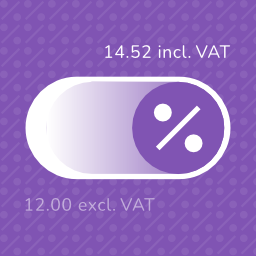
Tax Switch for WooCommerce enhances your WooCommerce store by allowing users to toggle between displaying prices including or excluding tax. This plugin adds a customizable switch component and provides a flexible way to display both price versions. See Tax Switch for WooCommerce in action: Try the live demo → Key features Display customizable switches where you want Gutenberg block support Shortcode for easy integration (including shortcode generator) Flexible display options for prices with and without tax Remembers the user’s preference for future visits Choose between a toggle switch or buttons For more information about this plugin, please visit the plugin page. Requirements WooCommerce plugin installed and activated WooCommerce tax calculations enabled and configured Configuration Configure the plugin settings below for proper functionality. WooCommerce settings Ensure these WooCommerce settings are configured first: Configure tax calculations Go to: WooCommerce > Settings > General Verify your shop address is complete Enable “Enable tax rates and calculations” Set “Default customer location” to “Shop base address” Set up tax rates Go to: WooCommerce > Settings > Tax > Standard Rates Add your regional tax rates Recommended: tax calculation method Go to: WooCommerce > Settings > Tax Set “Calculate tax based on” to “Shop base address” (This provides instant tax calculation. Other methods require customers to enter their address first.) Individual product configuration Edit products at: Products > [Product] Under Product Data > Tax, set status to “Taxable” Plugin settings Configure these plugin-specific settings: Main settings Go to: WooCommerce > Settings > Tax Switch Set your preferred text values Optional: Restrict display locations Optional: Generate a shortcode via WooCommerce > Settings > Tax Switch > Shortcode Usage After installation and configuration, you can add the tax switch to your pages in two ways: Use the Gutenberg block “Tax Switch for WooCommerce” in your page or post editor. Use the shortcode [wdevs_tax_switch] anywhere in your content. Shortcode Usage Switch/buttons Basic usage: [wdevs_tax_switch] Displays a switch to toggle displaying prices including or excluding tax. The shortcode accepts several attributes to customize its appearance and behavior: class-name: Adds custom CSS classes to the switch. Default: is-style-default Options: is-style-default, is-style-inline, is-style-flat-pill, or custom classes switch-type: Determines the style of the toggle. Default: switch Options: switch, buttons switch-color: Sets the color of the switch handle. switch-color-checked: Sets the color of the switch when it’s in the “on” position. switch-background-color: Sets the background color of the switch. switch-text-color: Sets the text color of the switch labels. switch-background-color-checked: Sets the background color of the switch when it’s in the “on” position. switch-label-incl: Sets the text for the “including tax” label. Default: Uses the text set in the plugin settings or “Incl. VAT” if not set. switch-label-excl: Sets the text for the “excluding tax” label. Default: Uses the text set in the plugin settings or “Excl. VAT” if not set. switch-aria-label: Sets the aria label of the switch. Default: Uses the text set in the plugin settings or “Switch between prices including and excluding tax” if not set. Example with custom attributes: [wdevs_tax_switch class-name="is-style-inline" switch-type="switch" switch-color="#ffffff" switch-color-checked="#000000" switch-background-color="#000000" switch-background-color-checked="#4CAF50" switch-text-color="#FF0000" switch-label-incl="Incl. VAT" switch-label-excl="Excl. VAT" switch-aria-label="Switch between prices including and excluding tax"] Label Basic usage: [wdevs_tax_switch_label] Displays text indicating the currently selected tax setting. The text updates automatically when the tax switch is toggled. The shortcode accepts several attributes to customize its appearance and behavior: class-name: Adds custom CSS classes to the label. Default: is-style-default Options: is-style-default or custom classes label-text-incl: Sets the text to display when “including tax” is selected. Default: Uses the text set in the plugin settings or “Incl. VAT” if not set. label-text-excl: Sets the text to display when “excluding tax” is selected. Default: Uses the text set in the plugin settings or “Excl. VAT” if not set. label-text-color: Sets the “excluding tax” text color. label-text-color-checked: Sets the “including tax” text color. Example with custom attributes: [wdevs_tax_switch_label class-name="tax-indicator" label-text-incl="Prices include tax" label-text-excl="Prices exclude tax" label-text-color="#FF0000" label-text-color-checked="#4CAF50"] PHP implementation You can use these shortcodes with PHP with the do_shortcode() function: JavaScript API Tax Switch provides a JavaScript API for custom integrations, such as buttons, preference popups, or other flows where visitors choose whether they want to see prices including or excluding tax. if ( window.wdevsTaxSwitch && ! window.wdevsTaxSwitch.hasSavedChoice() ) { window.wdevsTaxSwitch.setDisplay( 'incl', { respectExistingChoice: true, } ); } API methods: * getDisplay(): returns the current display, either 'incl' or 'excl'. * setDisplay( display, options ): changes the display to 'incl' or 'excl'. * hasSavedChoice(): returns whether the visitor already has a saved switch choice. * refresh(): reapplies the current display. * toggle( options ): toggles between inclusive and exclusive tax display. Options: * respectExistingChoice: boolean – preserves an existing saved visitor choice. Set respectExistingChoice to true when you only want to apply a default if the visitor has not already made a saved choice. You can also request a display change by dispatching an event. This is useful when your integration is event-driven. document.dispatchEvent( new CustomEvent( 'wdevs-tax-switch-context-changed', { detail: { display: 'incl', respectExistingChoice: true, }, } ) ); Detail properties: * display: 'incl' | 'excl' | 'toggle' – requested tax display. * respectExistingChoice: boolean – preserves an existing saved visitor choice. JavaScript events The switch fires a JavaScript event when the tax display changes. You can listen for this event to execute custom code when a user switches between inclusive and exclusive tax display. This is useful for when you need to perform additional actions based on the tax display state. document.addEventListener( 'wdevs-tax-switch-changed', function( event ) { console.log( event.detail ); } ); Detail properties: * isSwitched: boolean – the raw switch state. * displayIncludingTax: boolean – whether prices now display including tax. If you are loading the switch dynamically (via AJAX), dispatch this event after rendering to initialize the component: document.dispatchEvent( new CustomEvent( 'wdevs-tax-switch-appeared' ) ); WPML To translate the option texts via WPML: Save your options first in: WooCommerce -> Settings -> Tax Switch Then translate the texts in: WPML -> String Translations and search for your option values in the domain ‘tax-switch-for-woocommerce’ Compatibility This plugin integrates with WooCommerce’s standard filters and actions for price display and calculation. While most plugins and themes work out of the box, some third-party code use custom price building methods that require specific compatibility integrations. The following themes have been tested and confirmed compatible: GeneratePress Blocksy Thrive Flatsome Kapee Entr Woodmart Hello Elementor The following plugins have been tested and confirmed compatible: WooCommerce Product Table Lite (+ PRO) Tiered Pricing Table for WooCommerce (+ Premium) Measurement Price Calculator for WooCommerce Discount Rules for WooCommerce YITH WooCommerce Product Add-Ons (+ & Extra Options Premium) JetEngine Listing Grid (Elementor) Product Add-Ons for WooCommerce B2BKing – Ultimate WooCommerce Wholesale and B2B Solution (+ Premium) Advanced Product Fields Pro/Extended for WooCommerce WooCommerce Quantity Discounts, Rules & Swatches FacetWP Variation Swatches for WooCommerce (+ PRO) Variation Price Display Range for WooCommerce (+ PRO) WooCommerce Product Add-Ons Ultimate Advanced Woo Search (+ PRO) B2B Market FiboFilters Extra Product Options & Add-Ons for WooCommerce FiboSearch – Ajax Search for WooCommerce (+ Pro) YayMail – WooCommerce Email Customizer PDF Invoices & Packing Slips for WooCommerce WooCommerce Product Bundles LiteSpeed Cache Elementor Pro YITH WooCommerce Role Based Prices WooCommerce Dynamic Pricing and Discount Rules Price Based on Country for WooCommerce WP Grid Builder If you encounter any compatibility issues with other plugins or themes, please let us know. Your feedback helps us improve the plugin and extend compatibility to more third-party solutions. Incompatibility After multiple attempts to create compatibility functions, reaching out to the plugin developers several times, and still finding no viable solution, the following plugins remain incompatible: Unlimited Elements for Elementor (+ Pro): AJAX pagination and filtering issues Barn2: WooCommerce Product Options Additional Information This plugin is fully open source. You can find the source code on GitHub For more information and other WordPress plugins, visit Wijnberg Developments.