Tax Exemption for WooCommerce
Let your customers declare that they are exempt from tax on WooCommerce checkout, provide the details to back it up, and have tax removed from their order automatically. This is useful if you have some customers that are eligible to be exempt from tax on your products, for example for the purpose of disability VAT exemption or charity VAT relief, or business customers supplying a VAT number. Getting Started Simply install the “Tax Exemption plugin for WooCommerce” plugin, and visit the “Tax Exemption” settings page under “WooCommerce” in the WordPress admin. Configure the plugin settings as required: Enable or disable the tax exemption feature. Select the tax class to use for the Tax / VAT exemption. Select the location on checkout to display the tax exemption fields. Show the tax exemption checkbox and fields on the cart page too, and choose where. Enable or disable removal of tax on shipping for exempt customers. Enable or disable the tax exemption fields on the “My Account” page. Choose which details to collect – the name and reason fields can each be shown, hidden, or made required. Collect a registration number (VAT number, charity number, ABN and more) and choose which types you accept. Get an email whenever a tax exempt order is placed. Customise the text/labels used throughout the plugin. Your customers will then be able to select the “I want to claim tax exemption” checkbox on the checkout page, and enter their tax exemption details. Tax will be removed from their order if this is checked and they have entered their details successfully. Where The Form Appears The tax exemption form works on the classic checkout, the WooCommerce block checkout, the cart page, and the “My Account” page, for both guests and logged in customers. You can also place it anywhere else on your site with the [tefw_exemption_form] shortcode. Managing Exempt Customers & Orders Exempt Customers – a searchable list of every customer claiming tax exemption, along with their details. Customers can be added and edited here directly. Exempt Orders – every order placed with tax exemption, filterable by date. If an order is marked as tax / VAT exempt, this will be shown on the admin order details page, where you can see the tax exempt details. An optional column on the orders list marks which orders were exempt. Each customer’s exemption details can also be viewed and edited from their WordPress user profile. Tax exemption details are included in WordPress personal data exports and erasure requests. PRO Version The PRO version offers several additional features including: Registration number verification (VAT, charity, ABN, GSTIN and more). Live lookups against the official registers – VIES, HMRC, the Australian Business Register and the Charity Commission. Automatic approval for customers whose number verifies. Consultation references recorded as proof that a number was checked. Re-check a customer’s stored number at any time. Option to show ex-tax prices to exempt customers across the whole store. Optional “inc/ex tax” price toggle for every visitor. Custom tax exemption form fields. Tax exemption certificate upload field. Tax exemption expiration date field. Automatic expiry reminder & expired notification emails. Customisable exemption request, approval and decline emails. Default validity period (auto-calculate expiration dates). Tax exemption city/state field. Tax exemption fields on registration form. Exemption status management for admins. Only allow exemption for approved users. Hide the tax exemption fields on checkout. Only remove tax from specific products. Only allow exemption for logged in users. Only allow exemption for selected user roles. Only allow exemption for selected countries. Only allow exemption for selected states/cities. Customize the tax class for each user. Export CSV files of exempt customers. Export CSV files of exempt orders. Integration with “AvaTax”. UPGRADE TO PRO
Top keywords
- tax31×5.02%
- exemption29×4.69%
- tax exemption18×2.91%
- exempt13×2.10%
- customers12×1.94%
- details9×1.46%
- number8×1.29%
- fields7×1.13%
- page7×1.13%
- vat7×1.13%
- checkout6×0.97%
- only6×0.97%
Tax Switch for WooCommerce
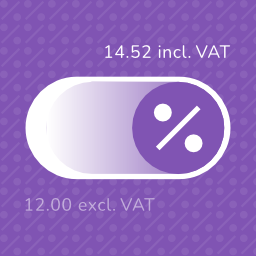
Tax Switch for WooCommerce enhances your WooCommerce store by allowing users to toggle between displaying prices including or excluding tax. This plugin adds a customizable switch component and provides a flexible way to display both price versions. See Tax Switch for WooCommerce in action: Try the live demo → Key features Display customizable switches where you want Gutenberg block support Shortcode for easy integration (including shortcode generator) Flexible display options for prices with and without tax Remembers the user’s preference for future visits Choose between a toggle switch or buttons For more information about this plugin, please visit the plugin page. Requirements WooCommerce plugin installed and activated WooCommerce tax calculations enabled and configured Configuration Configure the plugin settings below for proper functionality. WooCommerce settings Ensure these WooCommerce settings are configured first: Configure tax calculations Go to: WooCommerce > Settings > General Verify your shop address is complete Enable “Enable tax rates and calculations” Set “Default customer location” to “Shop base address” Set up tax rates Go to: WooCommerce > Settings > Tax > Standard Rates Add your regional tax rates Recommended: tax calculation method Go to: WooCommerce > Settings > Tax Set “Calculate tax based on” to “Shop base address” (This provides instant tax calculation. Other methods require customers to enter their address first.) Individual product configuration Edit products at: Products > [Product] Under Product Data > Tax, set status to “Taxable” Plugin settings Configure these plugin-specific settings: Main settings Go to: WooCommerce > Settings > Tax Switch Set your preferred text values Optional: Restrict display locations Optional: Generate a shortcode via WooCommerce > Settings > Tax Switch > Shortcode Usage After installation and configuration, you can add the tax switch to your pages in two ways: Use the Gutenberg block “Tax Switch for WooCommerce” in your page or post editor. Use the shortcode [wdevs_tax_switch] anywhere in your content. Shortcode Usage Switch/buttons Basic usage: [wdevs_tax_switch] Displays a switch to toggle displaying prices including or excluding tax. The shortcode accepts several attributes to customize its appearance and behavior: class-name: Adds custom CSS classes to the switch. Default: is-style-default Options: is-style-default, is-style-inline, is-style-flat-pill, or custom classes switch-type: Determines the style of the toggle. Default: switch Options: switch, buttons switch-color: Sets the color of the switch handle. switch-color-checked: Sets the color of the switch when it’s in the “on” position. switch-background-color: Sets the background color of the switch. switch-text-color: Sets the text color of the switch labels. switch-background-color-checked: Sets the background color of the switch when it’s in the “on” position. switch-label-incl: Sets the text for the “including tax” label. Default: Uses the text set in the plugin settings or “Incl. VAT” if not set. switch-label-excl: Sets the text for the “excluding tax” label. Default: Uses the text set in the plugin settings or “Excl. VAT” if not set. switch-aria-label: Sets the aria label of the switch. Default: Uses the text set in the plugin settings or “Switch between prices including and excluding tax” if not set. Example with custom attributes: [wdevs_tax_switch class-name="is-style-inline" switch-type="switch" switch-color="#ffffff" switch-color-checked="#000000" switch-background-color="#000000" switch-background-color-checked="#4CAF50" switch-text-color="#FF0000" switch-label-incl="Incl. VAT" switch-label-excl="Excl. VAT" switch-aria-label="Switch between prices including and excluding tax"] Label Basic usage: [wdevs_tax_switch_label] Displays text indicating the currently selected tax setting. The text updates automatically when the tax switch is toggled. The shortcode accepts several attributes to customize its appearance and behavior: class-name: Adds custom CSS classes to the label. Default: is-style-default Options: is-style-default or custom classes label-text-incl: Sets the text to display when “including tax” is selected. Default: Uses the text set in the plugin settings or “Incl. VAT” if not set. label-text-excl: Sets the text to display when “excluding tax” is selected. Default: Uses the text set in the plugin settings or “Excl. VAT” if not set. label-text-color: Sets the “excluding tax” text color. label-text-color-checked: Sets the “including tax” text color. Example with custom attributes: [wdevs_tax_switch_label class-name="tax-indicator" label-text-incl="Prices include tax" label-text-excl="Prices exclude tax" label-text-color="#FF0000" label-text-color-checked="#4CAF50"] PHP implementation You can use these shortcodes with PHP with the do_shortcode() function: JavaScript API Tax Switch provides a JavaScript API for custom integrations, such as buttons, preference popups, or other flows where visitors choose whether they want to see prices including or excluding tax. if ( window.wdevsTaxSwitch && ! window.wdevsTaxSwitch.hasSavedChoice() ) { window.wdevsTaxSwitch.setDisplay( 'incl', { respectExistingChoice: true, } ); } API methods: * getDisplay(): returns the current display, either 'incl' or 'excl'. * setDisplay( display, options ): changes the display to 'incl' or 'excl'. * hasSavedChoice(): returns whether the visitor already has a saved switch choice. * refresh(): reapplies the current display. * toggle( options ): toggles between inclusive and exclusive tax display. Options: * respectExistingChoice: boolean – preserves an existing saved visitor choice. Set respectExistingChoice to true when you only want to apply a default if the visitor has not already made a saved choice. You can also request a display change by dispatching an event. This is useful when your integration is event-driven. document.dispatchEvent( new CustomEvent( 'wdevs-tax-switch-context-changed', { detail: { display: 'incl', respectExistingChoice: true, }, } ) ); Detail properties: * display: 'incl' | 'excl' | 'toggle' – requested tax display. * respectExistingChoice: boolean – preserves an existing saved visitor choice. JavaScript events The switch fires a JavaScript event when the tax display changes. You can listen for this event to execute custom code when a user switches between inclusive and exclusive tax display. This is useful for when you need to perform additional actions based on the tax display state. document.addEventListener( 'wdevs-tax-switch-changed', function( event ) { console.log( event.detail ); } ); Detail properties: * isSwitched: boolean – the raw switch state. * displayIncludingTax: boolean – whether prices now display including tax. If you are loading the switch dynamically (via AJAX), dispatch this event after rendering to initialize the component: document.dispatchEvent( new CustomEvent( 'wdevs-tax-switch-appeared' ) ); WPML To translate the option texts via WPML: Save your options first in: WooCommerce -> Settings -> Tax Switch Then translate the texts in: WPML -> String Translations and search for your option values in the domain ‘tax-switch-for-woocommerce’ Compatibility This plugin integrates with WooCommerce’s standard filters and actions for price display and calculation. While most plugins and themes work out of the box, some third-party code use custom price building methods that require specific compatibility integrations. The following themes have been tested and confirmed compatible: GeneratePress Blocksy Thrive Flatsome Kapee Entr Woodmart Hello Elementor The following plugins have been tested and confirmed compatible: WooCommerce Product Table Lite (+ PRO) Tiered Pricing Table for WooCommerce (+ Premium) Measurement Price Calculator for WooCommerce Discount Rules for WooCommerce YITH WooCommerce Product Add-Ons (+ & Extra Options Premium) JetEngine Listing Grid (Elementor) Product Add-Ons for WooCommerce B2BKing – Ultimate WooCommerce Wholesale and B2B Solution (+ Premium) Advanced Product Fields Pro/Extended for WooCommerce WooCommerce Quantity Discounts, Rules & Swatches FacetWP Variation Swatches for WooCommerce (+ PRO) Variation Price Display Range for WooCommerce (+ PRO) WooCommerce Product Add-Ons Ultimate Advanced Woo Search (+ PRO) B2B Market FiboFilters Extra Product Options & Add-Ons for WooCommerce FiboSearch – Ajax Search for WooCommerce (+ Pro) YayMail – WooCommerce Email Customizer PDF Invoices & Packing Slips for WooCommerce WooCommerce Product Bundles LiteSpeed Cache Elementor Pro YITH WooCommerce Role Based Prices WooCommerce Dynamic Pricing and Discount Rules Price Based on Country for WooCommerce WP Grid Builder If you encounter any compatibility issues with other plugins or themes, please let us know. Your feedback helps us improve the plugin and extend compatibility to more third-party solutions. Incompatibility After multiple attempts to create compatibility functions, reaching out to the plugin developers several times, and still finding no viable solution, the following plugins remain incompatible: Unlimited Elements for Elementor (+ Pro): AJAX pagination and filtering issues Barn2: WooCommerce Product Options Additional Information This plugin is fully open source. You can find the source code on GitHub For more information and other WordPress plugins, visit Wijnberg Developments.