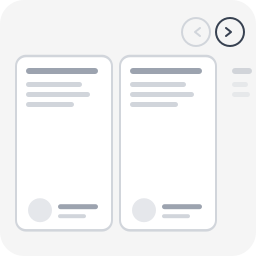
Snap Carousel
Most WordPress carousel plugins load heavy libraries (Slick, Swiper, jQuery) and fail basic accessibility checks. Screen readers can’t navigate them, keyboard users are stuck, and WCAG audits flag them every time. Snap Carousel takes a different approach: CSS scroll-snap does the scrolling, proper ARIA attributes do the rest. No JavaScript library, no configuration panel, no learning curve — just a block style to apply in one click. Built by WeAre[WP], a WordPress agency specializing in accessible websites and RGAA audits. This plugin exists because we needed a carousel that actually passes our own audits. Supported blocks Apply any of the 4 carousel styles to: Group block (core/group) — any child blocks become slides Query Loop block (core/query) — posts scroll as carousel slides Gallery block (core/gallery) — images scroll as carousel slides Variants Carousel (3 items) — 3 visible items + peek Carousel (1 item) — full-width slideshow Carousel (2 items) — 2 visible items + peek Carousel (4 items) — 4 visible items + peek Features 100% CSS scroll-snap — no Slick, no Swiper, no jQuery Prev/next navigation buttons Keyboard navigation (Arrow keys, Home, End) Full ARIA attributes (role=”region”, aria-roledescription, aria-live) Peek effect: partial visibility of the next item, signaling scrollable content Responsive (auto tablet/mobile adaptation) Respects prefers-reduced-motion Works with Group, Query Loop, and Gallery blocks Works with any child block (images, columns, groups, WooCommerce…) Lightweight: ~2 KB CSS + ~2 KB JS, zero external dependency Full RTL (right-to-left) language support Fully internationalized (i18n ready, French translation included) Easy to customize via CSS custom properties or overrides Accessibility (WCAG 2.2 AA) role="region" + aria-roledescription="carousel" on the container role="group" + aria-roledescription="slide" on each item aria-label="X of Y" for position context tabindex="0" for keyboard focus aria-live="polite" to announce changes Buttons with aria-label and aria-controls Touch targets 44×44px minimum Visible focus indicator Usage With a Group block In the editor, create a Group block Set the group layout to Row Add child blocks (images, groups, columns…) In the sidebar panel → Styles → choose Carousel (3 items) (or another variant) Publish With a Query Loop block Insert a Query Loop block Configure the query (post type, filters, number of items…) In the sidebar panel → Styles → choose a Carousel variant Publish — posts scroll horizontally as carousel slides With a Gallery block Insert a Gallery block and add images In the sidebar panel → Styles → choose a Carousel variant Publish — images scroll horizontally as carousel slides Navigation buttons and accessibility attributes are automatically injected on the front-end. Customization The carousel is designed to work out of the box, but you can easily override styles in your theme’s style.css or via the WordPress Customizer > Additional CSS. Disable the peek effect By default, items are slightly narrower than the visible area so the next item “peeks” in — signaling there is more content to scroll. To disable this and show full-width items: /* Disable peek — 3 items variant */ .is-style-snap-carousel > * { flex-basis: calc(33.333% - 1rem) !important; } /* Disable peek — 1 item variant */ .is-style-snap-carousel-single > * { flex-basis: 100% !important; } /* Disable peek — 2 items variant */ .is-style-snap-carousel-duo > * { flex-basis: calc(50% - 0.75rem) !important; } /* Disable peek — 4 items variant */ .is-style-snap-carousel-quad > * { flex-basis: calc(25% - 1.125rem) !important; } Customize navigation arrows /* Arrow color and background */ .snap-carousel-prev, .snap-carousel-next { background: #0073aa; color: #ffffff; border-color: #0073aa; } /* Arrow hover state */ .snap-carousel-prev:hover, .snap-carousel-next:hover { background: #005177; color: #ffffff; } /* Arrow size (default: 44px — WCAG minimum touch target) */ .snap-carousel-prev, .snap-carousel-next { width: 48px; height: 48px; } /* Square arrows instead of round */ .snap-carousel-prev, .snap-carousel-next { border-radius: 8px; } Customize spacing /* Gap between items */ [class*="is-style-snap-carousel"] { gap: 2rem; } /* Space above carousel (room for navigation) */ .snap-carousel-wrapper { padding-top: 4rem; } Customize focus indicator /* Custom focus color for keyboard navigation */ [class*="is-style-snap-carousel"]:focus-visible { outline-color: #ff6600; outline-width: 3px; } .snap-carousel-prev:focus-visible, .snap-carousel-next:focus-visible { outline-color: #ff6600; } Use with WordPress theme.json design tokens The carousel already uses --wp--preset--color--base, --wp--preset--color--contrast and --wp--preset--color--primary tokens. You can override these per-block in theme.json or via CSS: /* Example: dark themed carousel */ .snap-carousel-wrapper { --wp--preset--color--base: #1a1a2e; --wp--preset--color--contrast: #e0e0e0; --wp--preset--color--primary: #e94560; } Technical Notes – CSS overrides flex-wrap: nowrap on the Row container to force horizontal scrolling – Items use a slightly reduced flex-basis to create a peek effect (next item partially visible) – Navigation buttons are positioned absolute at the top right (adjust top value for your theme) – JS uses a 150ms debounce on scroll for button state updates and 300ms for screen reader announcements – Compatible with WooCommerce blocks (products, etc.) About Snap Carousel is built and maintained by WeAre[WP], a French WordPress agency specializing in accessible websites and RGAA compliance audits. This plugin was built to solve a real problem: every carousel plugin we audited failed basic accessibility requirements. So we built one that passes our own audits. Need help with your WordPress project? Get in touch.
Top keywords
- carousel22×2.84%
- items15×1.93%
- block11×1.42%
- peek10×1.29%
- css8×1.03%
- group7×0.90%
- navigation7×0.90%
- variant7×0.90%
- disable6×0.77%
- item6×0.77%
- query6×0.77%
- scroll6×0.77%
TablePress – Tables in WordPress made easy
Boost your website with feature-rich tables that your visitors will love! TablePress is the most popular and highest-rated WordPress table plugin. Easily create, edit, and manage beautiful and modern data tables, from simple price lists to searchable directories, product and model tables, inventories, schedules, and research datasets. Add live sorting, pagination, searching, and other interactive features that help visitors find what they’re looking for on any device. Use any type of data and enrich your tables with images, links, and even math formulas. Import and export tables from/to Excel, CSV, HTML, and JSON files or URLs, including spreadsheet data from Google Sheets, Excel Online, and files stored on Dropbox or OneDrive. Embed tables into posts, pages, or other site areas using the block editor, an Elementor widget, or Shortcodes. All with no coding knowledge needed! Even more great features for you and your site’s visitors and priority email support are available with a Premium license plan of TablePress. Go check them out! Common use cases TablePress will handle a wide range of tables, from simple price lists to searchable directories and large datasets. Popular examples include: Product and model tables Service and price lists Directories and listings Schedules and timetables Participant and member lists Inventories and collections Comparison tables Research and statistical data Accessible and SEO-friendly tables TablePress creates accessible HTML tables whose content can be searched by visitors, WordPress search, and search engines alike. Interactive features like sorting, filtering, and pagination include accessibility enhancements for screen readers and other assistive technologies. This makes it easy for visitors to find relevant information, whether they are browsing a large directory, searching a product table, or using your site’s search function. More information Visit tablepress.org for more information, take a look at example tables, or try TablePress on a free test site. For latest news, follow @TablePress on Twitter/X or subscribe to the TablePress Newsletter. How to use TablePress After installing the plugin, you can create and manage tables on the “TablePress” screen in the WordPress Dashboard. To insert a table into a post or page, add a “TablePress table” block in the block editor or a widget in the Elementor page builder and select the desired table or use Shortcodes with other page builders. Beginner-friendly step-by-step tutorials, guides, and how-tos show how to achieve common and popular tasks with TablePress. You can find examples for common styling changes via “Custom CSS” code on the TablePress FAQ page. You may also add features like sorting, pagination, searching, filtering, alternating row colors, row highlighting, and more by enabling the corresponding options on a table’s “Edit” screen. Premium features Need additional functionality for larger tables or advanced use cases? Premium license plans for TablePress add features such as: Options for responsive tables Advanced filtering and search Fixed table headers and columns Automatic periodic imports Custom styling options And much more Priority email support is also included. Check out the details on the TablePress website.