Shortcodes Ultimate – Content Elements
🌟 Building new pages with Gutenberg? Explore VovaBlocks, a focused collection of native marketing and content blocks from the creator of Shortcodes Ultimate. View VovaBlocks → ➡️ About Shortcodes Ultimate Shortcodes Ultimate is a WordPress shortcode plugin for adding tabs, accordions, buttons, FAQs, sliders, carousels, lightboxes, columns, boxes and other reusable content elements without coding. It is ideal for site owners who want richer content layouts and practical UI elements without switching to a full page builder. Use Shortcodes Ultimate in the Block Editor, Classic Editor, widgets and template files. Generate shortcodes visually, preview the result before inserting it, and reuse the same elements across posts, pages and existing shortcode-based content. Trusted by hundreds of thousands of WordPress sites, Shortcodes Ultimate helps you replace multiple single-purpose UI plugins with one maintained toolkit. Explore live examples What you can build With Shortcodes Ultimate, you can quickly add common WordPress content elements such as: Accordions and FAQ sections Responsive tabs CTA buttons and download buttons Boxes, notes and callouts Columns and layout helpers Sliders and carousels Lightboxes for images and custom content Post lists and dynamic content blocks Spoilers, toggles and expandable content Media embeds and visual content blocks Instead of installing a separate plugin for every small content element, Shortcodes Ultimate gives you one maintained toolkit for everyday WordPress content tasks. Works with modern and classic WordPress workflows Shortcodes Ultimate works with the Block Editor, Classic Editor, widgets and template files. You can insert shortcodes manually, use WordPress shortcode blocks or use the built-in shortcode generator to configure elements visually. This makes the plugin useful for: Site owners who want to improve content without coding Bloggers and affiliate publishers who need reusable CTA and content blocks Agencies and freelancers maintaining multiple WordPress sites Developers who want shortcode-friendly output in templates Existing sites with older content that already uses shortcodes Why use Shortcodes Ultimate? 50+ ready-to-use WordPress shortcodes Visual shortcode generator Live preview Works with the Block Editor and Classic Editor Shortcodes can be used in posts, pages, widgets and template files Responsive elements that work with your theme Built-in Custom CSS editor Developer-friendly hooks and documentation Free version available on WordPress.org Pro version available for advanced shortcodes, extra styles and premium support Why shortcodes still matter in WordPress The WordPress Block Editor is great for visual content editing, but shortcodes are still useful when you need portable, reusable content elements that work across different parts of a WordPress site. Shortcodes are especially helpful when you want to: Reuse the same content element in many posts or pages Add dynamic content inside widgets or templates Maintain older WordPress sites that already use shortcodes Work across Classic Editor and Block Editor workflows Add content elements without switching to a full page builder Keep common UI elements available through a simple text-based syntax Shortcodes Ultimate is designed for these practical workflows. It gives you a large collection of ready-made shortcodes and a visual generator, so you do not need to write shortcode syntax manually unless you want to. Free and Pro The free version of Shortcodes Ultimate includes a large collection of useful shortcodes for everyday WordPress content tasks. Shortcodes Ultimate Pro adds advanced shortcodes, additional styles, Content Slider, Pricing Table, Testimonials, Shortcode Creator, Elementor support and premium support. Compare Free and Pro Useful links Documentation Live Examples Pro features Support
YITH WooCommerce Product Add-Ons
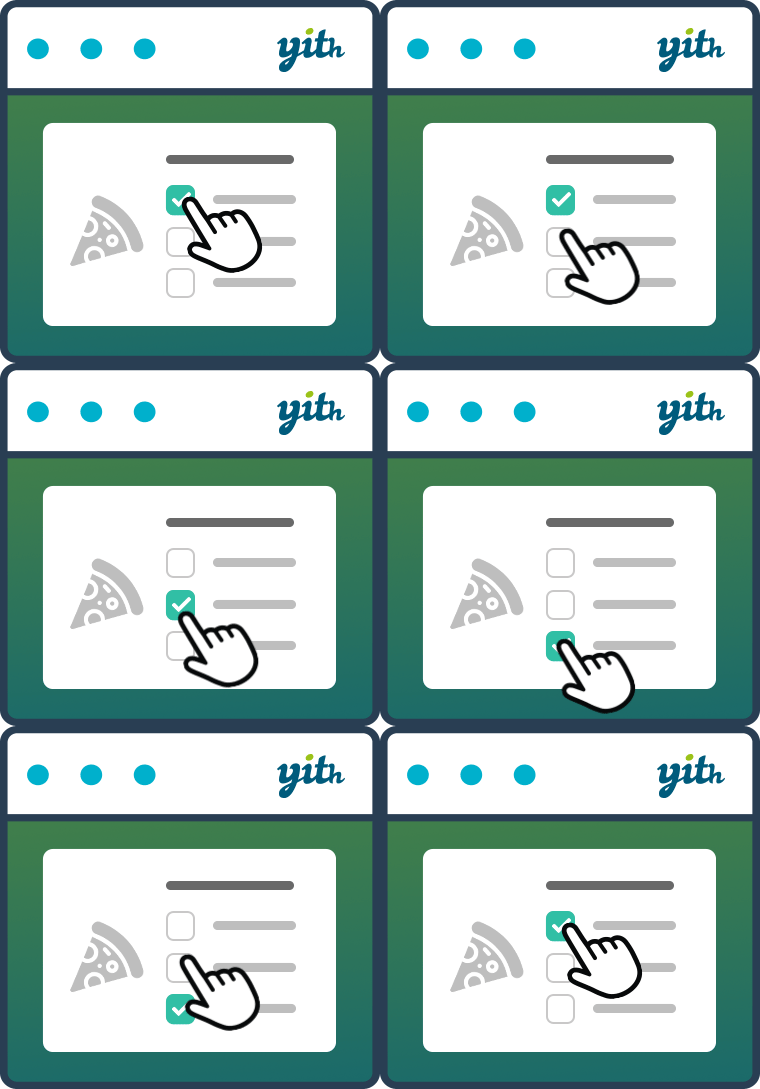
YITH Product Add-ons & Extra Options is a versatile and complete tool for the creation and sale of advanced products or services and the addition of custom options to your product pages. You can create endless blocks of options to display in all products or only in specific products or categories, and choose from different types of product add-ons: radios, drop-down menus, text boxes, checkboxes, etc. Set a price for each option, offer it for free or discount the product price when the option is selected. This product add-ons plugin is a simple solution for selling customizable products (e.g., if you sell t-shirts or jewelry, you can insert a radio button to let the user choose whether or not to customize the product and if they choose “Yes” show a text box to enter the text to be printed or engraved) or products with advanced add-ons (e.g., if you sell a box of products, you can let the user choose the number of products to include, charge extra for additional products, and have the user choose the shipping service from a list of available couriers). The options selected and information submitted by customers will be included in the order details. YITH WOOCOMMERCE PRODUCT ADD-ON & EXTRA OPTIONS FEATURES FREE VERSION See the plugin in action: Try the free version’s live demo > Create unlimited blocks of options Display the block of addons in all products or only in specific products or categories Add HTML elements to the options block: title, text, and delimiters (single, double, dotted or dashed border, space, etc.) Add “Radio button” type options Add “Text input” options (optional: set a minimum and maximum number of characters the user can enter) Add “Select” type options Add “Checkbox” type options Set conditions to show or hide a block of product addons (e.g., show option B only when the user selects “Yes” in option A) Set conditions to show add-on options only in certain variations (e.g., show options only when black color variation is selected) Choose whether to set the option as mandatory Choose whether to show the option as selected by default Choose where to show the addons on the Product Page (before or after the “Add to Cart” button) Enter an optional title for each option block and choose which format to use (h1, h2, h3, etc.) Enter a name and a description for each option Display an optional tooltip for each option Choose whether to offer the option for free (product price does not change when selected) Choose whether the option has a fixed or percentage cost that increases the product price, or whether to offer a discount on the product price when the option is selected Set a background and padding for the option block, and customize the border, text, and highlight colors. WANT MORE? DISCOVER WHAT THE PREMIUM VERSION HAS TO OFFER! See the plugin in action: Visit the Premium version’s live demo > Hide options from specific products Show add-ons to all users/only logged in users/only certain user roles Add “Text area” type options (you can also set a minimum and maximum number of characters the user can enter) Add “Color picker” options (set a color swatch or image) Add “Number” type options Add “Label or image” type options Add “Date” type options (with advanced options to also set a default date, start and end year, etc.) Add “File upload” type options with drag and drop support. Set supported file formats and maximum allowed size Add “Product” type options to display related products for upsell promotion Upload an image to represent the option and choose whether to use it to replace the main product image (on the product page and in the shopping cart) Choose the location of the image (above or below the label, right or left) Choose whether or not to display the set of product addons in a section that can be opened and closed (toggle) Hide the name, description and price of the options Choose how many options you want to show for each row, and enable the grid layout to adjust the arrangement of the options based on the width of the page Choose whether or not to multiply the product price by the length of the text entered by the user (available only for the “Text” and “Text Area” types) Choose whether the product price should be multiplied by the quantity of the option selected by the user (available for “Quantity” type only) Offer the first X selected options for free (e.g. if someone buys a pizza, the first three toppings are free, the fourth is charged) Choose whether to replace the product price with the updated price including options, and whether to display a price summary box on the product page Choose the style for checkboxes and color swatches (round or square) Set image position for “Label or image” type options Set the default position for name and description For each block, choose how many options the user can select and whether to set a number (exact, minimum, or maximum) of options to select before paying Hide the “Add to Cart” button until the user selects the required options Show or hide selected addons in the cart Allow the user to change the selected options in the cart from a modal window NEW Show or hide selected product addons in order emails