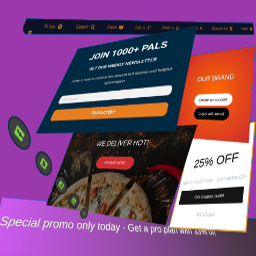
MaxBoxy
MaxBoxy is a tool that will help you in making engagement and conversion elements for your Website. To be concrete, with MaxBoxy create floating content, menus, info bars, popup or slide-in panels. Set them into rotating notification system, introduce them on page’s load or exit intend, offer coupons and much more. It can be used, for example, to: Engage visitors with your products and items Turn over site visitors to consumers, followers or buyers Increase social followers & connect with your social sites Get additional email subscribers Create eminent floating menus Stick necessary announcements Rotate exciting news and messages about your products Manage content boxes through different panel strains. Lets see beneath. Strain FloatAny Basically, with FloatAny strain – float any content on your site. Whatever you make with inside the panel will appear as a floating content box on your WordPress Website. Create popup boxes, notifications, alerts, info bars, banners, display ads… Strain InjectAny In essence, with InjectAny strain – inject any content on specified pages or over the whole site. Create alerts or highlighted content boxes and even dismissible notes. You can also inject CSS and JS code in predefined head and footer locations. Simplicity, Performance and Design The big chance is you’re going to like this, MaxBoxy’s interface is the same that WordPress is using for publishing posts and pages. This means that content of the panels are built with native WordPress’ blocks. This creates lightweight outcome, outputting mostly the resources your site is already using. This should produce faster page loading compared to the tools competitors provide. Conversion Set the goals inside your MaxBoxy content boxes and measure conversions. These goals can be set as click on buttons or newsletter/sign-up forms submission. So, after setting the panels, see the stats and how the visitors are engaging with your messages and action calls. Therefore, MaxBoxy allows you to simply extend the functionality of your Website and to create floating content or injecting content box in an easy and a way you should be already familiar with. Multiple styles and functionalities are there which will help you to engage your site’s guests and will enable additional interactions for them on the site. You see, by using WordPress blocks you assemble components to form different site elements, i.e. floating menus, popup boxes, newsletter signup forms, important announcements and alerts, rotating messages. As you guess, the way you form the content, is up to you. You can get really creative by yourself or use existing patterns. Documentation and other help when you need it After installing the plugin, the best way to start is to check the documentation on our site. We explain in details all the features the plugin have. To fully understand MaxBoxy’s features you can visit Demo section from our site. At the end, to get things easier we’ve created the import/export feature. This permits you to quickly move FloatAny and InjectAny content from one Website to a different one or to begin simply with the examples we have prepared for you. Once imported, you’ll be able to test different content panel types. More information on how to import exemple content is provided on our site. Note: Some features are part of the Premium addon. Free version allows usege of InjectAny with pre-defined locations and you can create FloatAny panels for the site overall disposal, while the Premium addon gives you more flexibility. With free version obtain the general impression regarding the plugin and if the site overall functionallity is all you need, you’re free to use it. However, with Premium version you get more features and options. Go Premium Premium Version Conditional appearance Restriction for any page, categories, user logged status, user roles, etc. Appear after event (time, scrolling, page’s element in view), etc. Scheduling campaings Geolocation targeting Trigger a panel “On click”, “On hover” – from the content’s button, link or image Output as a shortcode or through WordPress block interface and much more customization options… For additional information visit our site and see all features and benefits of upgrading to the MaxBoxy’s Premium version.
Top keywords
- content15×2.17%
- site13×1.88%
- maxboxy7×1.01%
- premium6×0.87%
- boxes5×0.72%
- floating5×0.72%
- version5×0.72%
- wordpress5×0.72%
- different4×0.58%
- floatany4×0.58%
- injectany4×0.58%
- page4×0.58%
ZAFS Alert For Slack
ZAFS Alert For Slack sends messages to your Slack workspace when important events happen on your WordPress site. This plugin is developed by Zohaib Murtaza and is not affiliated with, endorsed by, or sponsored by Slack. Create multiple notification rules — each with its own Slack app, channel, event, and custom message template. Use dynamic variables like {post_title}, {user_login}, or {order_total} in your messages. WordPress events include published posts, new user registrations, and new comments. WooCommerce support — when WooCommerce is active, you can also notify Slack about new orders, order status changes, low stock, and new products. Features Save multiple Slack apps (name + bot token) and reuse them across notifications Multiple notification rules (different apps, channels, and events per rule) Connect with a Slack Bot User OAuth Token (xoxb-...) Load and select channels from your workspace Custom message templates with merge tags Send test messages before going live Encrypted token storage at rest Export and import apps and notifications as JSON (backup, migration) WordPress events: post published, user registered, comment posted WooCommerce events (when WooCommerce is active): product created, new order, order status changed, low stock Slack setup Create a Slack app at api.slack.com/apps Add Bot Token Scopes: channels:read, groups:read (required for private channels), chat:write Install the app to your workspace and copy the Bot User OAuth Token Invite the bot to the channel: /invite @YourBot Paste the token in the plugin and click Load channels Privacy Slack bot tokens and notification settings are stored in your WordPress database (tokens are encrypted at rest). No data is sent to the plugin author. External services This plugin connects to Slack (Slack Technologies, LLC) through the Slack Web API at https://slack.com/api/. Slack is required to verify bot tokens, list channels, and deliver alert messages you configure. What is sent and when When you save a Slack app — the plugin sends your Bot User OAuth Token to Slack (auth.test) to verify the token and read the workspace name. When you click Load channels — the plugin sends the token to Slack to list channels your bot can access (conversations.list and related methods). When you send a test message or a notification fires — the plugin sends the token, target channel ID, and the message text (built from your template and event data such as post title, user login, order total, or product name) to Slack (chat.postMessage). You choose which events trigger notifications. If WooCommerce is active, order-related templates may include billing email, order totals, and product details you include in the message template. Service provider Slack Technologies, LLC — Terms of Service, Privacy Policy. This plugin is not affiliated with Slack. Use of Slack is subject to your workspace agreement with Slack.
Top keywords