KeepInMind Dashboard Notes
KeepInMind Dashboard Notes turns your WordPress dashboard into a collaborative workspace. Place notes directly on any admin page – anchored to the exact element you’re talking about. No more Slack messages, emails, or random chats saying “that field on the product edit page” – just click, write your note, and your team sees it right where it matters. Why KeepInMind Dashboard Notes? Whether you’re working in a team or managing a site on your own, the same problem keeps coming up: how to keep track of decisions in the dashboard. Which settings need to change? What does this custom field do? Why is this item configured this way? KeepInMind Dashboard Notes solves this by letting you pin notes directly to dashboard elements – for your team, or for your future self. Here are just a few real-world scenarios where it shines: You temporarily disable a plugin to test whether it’s causing a conflict. Drop a Warning note on the Plugins page so everyone knows it was turned off on purpose – and so you remember to check back in three weeks. You installed a plugin for one very specific reason that isn’t obvious. Pin a note to it explaining why it’s there, so another admin – or future you – doesn’t delete it thinking it’s unused. A client keeps changing a setting that breaks their site. Attach an always-visible Alert banner right next to that toggle: “Do not change – this controls the checkout redirect.” Your developer configured a custom field with a non-obvious format. Leave a note on the field itself explaining what values are expected, so the content team doesn’t have to guess. You’re onboarding a new team member. Instead of writing a separate training doc, scatter helpful Attention banners across the pages they’ll use most – guidance that shows up exactly where they need it. You’re running a staging review before launch. Pin notes to every area that needs a final check, and let your team reply with updates as they work through the list. Key Features Pin Notes Anywhere Click any element on any admin page to leave a note. Your note stays anchored to that exact element – a form field, a menu item, a settings toggle, a table row. When your teammate visits the page, they see the note marker right where it belongs. Rich Text Editing Format your notes with bold text, links, and text colors. The floating toolbar appears on text selection. Three Note Types: Pinned Note – Appears as a marker on the page. Click to open and manage a threaded discussion. Open Note – Always visible inline. Choose a color to highlight the note based on its importance. Sticky Note – Bold square note that sticks in place for highly visible reminders and warnings. @Mention Teammates Type @ to mention any allowed user. They’ll receive an email notification with your note. Autocomplete helps you find the right person fast – just keep typing to filter. Private notes Mark any note as private so only you can see it. Perfect for personal reminders and work-in-progress notes. Threaded Replies Pinned notes support full threaded replies. Keep conversations organized and contextual without cluttering the page. Drag & Relocate Notes can be dragged to a new element if the page layout changes. Grab the drag grip and drop it on the right spot – all replies move with it. Note Scoping On entity pages (posts, terms, users), choose whether your note applies to this specific item or all items of this type. For example, a note on the “Blue T-Shirt” edit page can be scoped just to that product – or to the edit page of all products. Configurable Permissions Control exactly who can add notes and who can edit or delete: Role-based access – Choose which roles can use the plugin (Administrator is always included). User-level access – Whitelist specific users regardless of role. Edit/Delete/Relocate policies – Author only, role hierarchy (strict or relaxed), or everybody.
Top keywords
- note18×2.74%
- notes13×1.98%
- page10×1.52%
- dashboard6×0.91%
- team6×0.91%
- edit5×0.76%
- field5×0.76%
- element4×0.61%
- pin4×0.61%
- re4×0.61%
- text4×0.61%
- admin3×0.46%
WBD Pricing Tables – Gutenberg Pricing Table & Comparison Block
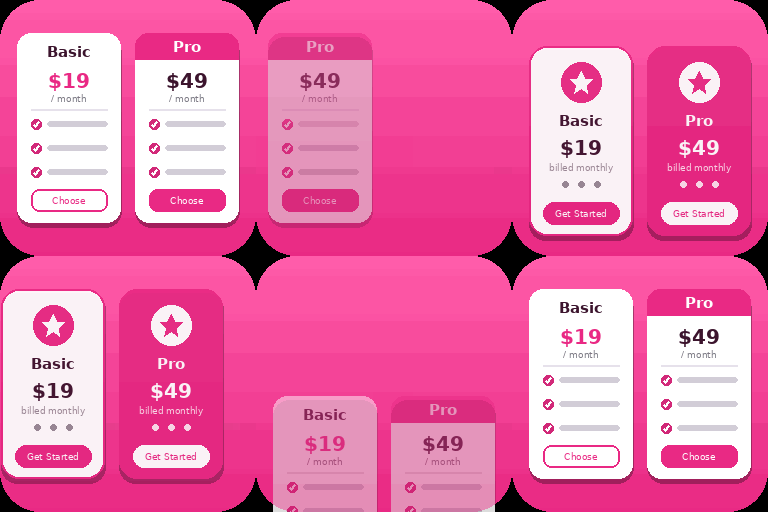
Pricing Tables Block for Gutenberg is a powerful and easy-to-use WordPress pricing table plugin that helps you create stunning pricing tables, pricing comparison tables, and pricing plans layouts directly inside the block editor. Live Demos | Pricing | Support Whether you’re building SaaS pricing pages, product comparison tables, or service plans — this Gutenberg pricing table block gives you full control without any coding.Lightweight, fast, and fully responsive — works with every WordPress theme. 🚀 Perfect for freelancers, agencies, SaaS, startups, and WooCommerce websites. Features ✅ Free Features Free Templates – Add up to 3 pricing plans displayed side by side in a responsive grid. Customizable Plan Details — Set plan name, price, currency symbol, billing period, and description for each plan. Feature Lists — Add unlimited features per plan with optional checkmark or cross icons to indicate included/excluded features. Call-to-Action Buttons — Customize button text and URL for each plan with option to open links in a new tab. Featured/Recommended Plan — Highlight a plan as “recommended” with a badge and visual emphasis. Color Customization — Choose header background color, header text color, button color, button text color, and featured plan accent color. Layout Options — Choose between 1 to 4 columns layout. Responsive Design — Plans stack gracefully on smaller screens. Live Preview — See all changes in real time within the editor. ⚡ Pro Version Features If you need even more features, styling options, or premium support, you can upgrade to the Pro version: Five Premium Templates Comparison pricing table block Advanced Styling & Layout Controls Priority Support — Dedicated help within 24 hours Why Choose This Pricing Table Block Plugin? Built specifically for Gutenberg (Block Editor) Lightweight and fast loading (better SEO performance) Fully responsive pricing table design No shortcode required – 100% block-based Clean UI inspired by modern SaaS pricing tables Use Cases SaaS pricing pages Service pricing plans Product comparison tables Subscription plans Agency packages SEO-Friendly Pricing Sections WBD Pricing Tables helps you create structured and readable pricing sections using the WordPress Block Editor. The plugin focuses on: Clean frontend markup. Responsive layouts. Lightweight implementation. Accessible interactive elements where applicable. Mobile-friendly pricing sections. Clear pricing and feature presentation. The plugin does not replace an SEO plugin. Search engine rankings depend on your overall website content, technical SEO, performance, competition, backlinks, and other factors. Development The uncompiled source code for this plugin is fully open-source and publicly accessible. Source Code Repository: https://github.com/wpbranddigital/wbd-pricing-table Source Folder: The human-readable and modifiable source files are included in the /src directory of the plugin. Build tools and environment: – Node.js & npm – webpack – @wordpress/scripts To regenerate the compiled files from source: 1. Clone the repository or navigate to the plugin directory. 2. Run npm install to install dependencies. 3. Run npm run build to compile the production assets into the /build directory. 4. Run npm run start to start the development watcher.