Image Ticker Carousel | by Creavi
A row of logos should not make visitors work. Images should move smoothly, links should be easy to use, and the layout should not fall apart when one caption is longer than the others. Image Ticker Carousel by Creavi gives Elementor users one flexible widget for partner logos, client showcases, product highlights, sponsors, certifications, press mentions, and promotional images. Choose continuous movement, a step carousel, or a focused cross fade slider. Then style it inside Elementor without writing code. View the live demo: Image Ticker Carousel for Elementor Need help or want to suggest a feature? Contact the Creavi support team. One widget for three common jobs Most sites do not need three separate add-ons just to move a row of images. Continuous ticker: Keep logos, sponsors, or partner images flowing in a smooth horizontal loop. Step carousel: Move one item at a time so visitors can comfortably read titles, descriptions, or product details. Single item cross fade: Keep attention on one message at a time with a clean fade between items. Every movement style supports image only, text only, and mixed content items. Give visitors control when it helps Automatic movement is useful until someone wants to look more closely. Optional previous and next arrows let visitors browse carousel and cross fade layouts at their own pace. Style their size, colors, position, hover state, and shape, or switch them off. They stay hidden for continuous tickers and single item layouts. Keep the edges polished, not distracting The optional side fade gently blends moving content into the viewport edge. It appears only in ticker and multi item carousel layouts. Carousel side fading also switches off when one item fills the viewport, because fading a single full width item would only hide useful content. Make every item useful Each item can include an image, title, subtitle, badge, and destination link. The complete item becomes clickable when linked. New tab and nofollow options are supported. If many items should lead to the same page, you can enable one default link for items that do not have a custom link. This option is disabled by default. The field is prefilled with the Creavi demo page as an editable example, and you can replace or remove it. A custom item link always takes priority. Fix uneven cards and rushed movement Long titles, different logo shapes, and the wrong speed can make a carousel feel unfinished. Control image size, text width, spacing, padding, background, radius, typography, ticker duration, slide timing, direction, and looping. Text wraps cleanly, pause on hover gives visitors time to inspect an item, and optional hover or wave effects add emphasis. Options appear only when they make sense The Elementor panel changes with the selected movement style. Arrows appear for carousel and cross fade modes. Side fade appears for ticker and carousel modes. Timing controls also match the selected motion. Front end safeguards hide effects when too few items are available. Built for real Elementor pages Works with Elementor Free. Elementor Pro is not required. Responsive controls help the design fit desktop, tablet, and mobile layouts. No external slider library is loaded. Navigation buttons have accessible labels, and cloned loop items stay out of keyboard focus. Reduced motion preferences are respected for decorative animation and transitions. Empty repeater rows are ignored instead of creating blank slides. External Services Optional Creavi email subscription When a site administrator selects Subscribe & Continue, the plugin sends the entered subscription email, administrator display name, site URL, an anonymous site hash, WordPress version, PHP version, plugin version, Elementor version, and locale to Creavi’s subscriber service at https://osecu.creavi.dk. This information is used to provide requested security and feature updates, educational content, occasional Creavi offers, and plugin compatibility improvements. No subscription information is sent when the administrator selects Skip. Administrators can change the email address or unsubscribe from the Creavi Ticker page. Creavi Privacy Policy: https://wordpress.creavi.dk/privacy-policy/ Optional anonymous usage metrics The plugin can send anonymous usage events to https://osecu.creavi.dk/wp-json/creavi/v1/metrics. Events cover plugin activation, published Elementor documents containing the widget, and plugin deactivation. Metrics include an anonymous site hash, plugin version, WordPress version, PHP version, Elementor version, event timestamps, browser user agent, and, for a published ticker only, the numeric WordPress document ID and post type. The receiving service stores a one way hash of the request IP address for abuse prevention. Metrics do not include the site URL, email address, page content, Elementor design data, image URLs, titles, captions, or destination links. Metrics are sent only after an administrator submits the metrics opt-in setting or publishes an Elementor document while the clearly labeled Share Anonymous Usage Metrics widget switch is enabled. Turning the setting off removes queued events.
Top keywords
- creavi12×1.51%
- elementor12×1.51%
- item11×1.39%
- carousel10×1.26%
- ticker8×1.01%
- version8×1.01%
- fade7×0.88%
- metrics7×0.88%
- only7×0.88%
- image6×0.76%
- items6×0.76%
- anonymous5×0.63%
Media Slider for Photos Images Videos
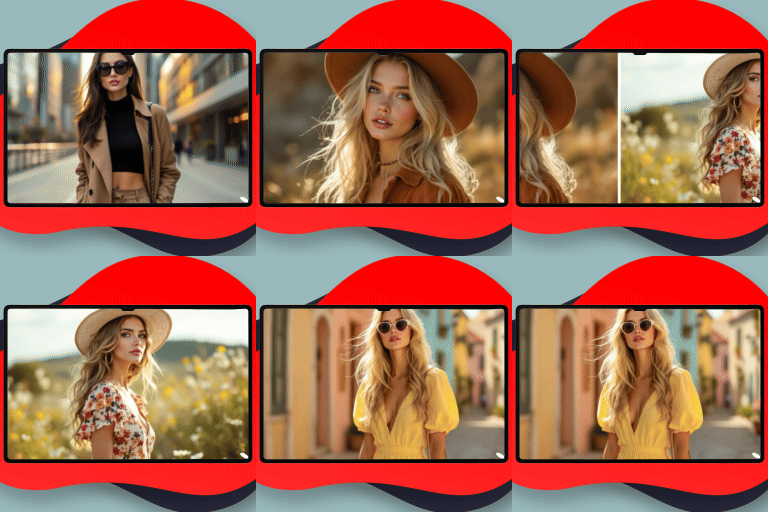
Create a responsive image slider to display photos, picture galleries, and play video slides on your WordPress website. Media Slider Description for Photos and Videos Media Slider helps you create beautiful slideshows for your site. You can showcase photo galleries, list portfolio items, or embed videos. This easy-to-use plugin organizes all media files in one dashboard. View Free Demo: Media Slider | View Pro Demo: Media Slider Pro Learn More About Pro: Media Slider Pro | Purchase Pro: Buy Media Slider Pro You can upload photos from your library. The plugin also supports YouTube videos. Add as many slides as you want. You can display the slider anywhere using a simple shortcode. Each slide allows custom titles, text descriptions, and links. Key Uses: * Make photo slideshows with smooth fade effects. * Display YouTube videos on your site. * Build mixed galleries with images and videos. * Show multiple slides at once in a carousel. * Enable responsive thumbnail navigation. * Select full-width or boxed layouts. Free Version Key Features: * Fully responsive layout fits any screen size. * Transition styles like slide and fade. * Classic previous and next arrow buttons. * Option to display navigation thumbnails below. * Custom width and height control fields. * Autoplay slide mode with speed settings. * Full-screen viewing button. * Simple sidebar widget support. * Compatible with standard WordPress themes. * No coding experience needed. Premium Version Features: * 4+ unique styles for navigation arrows. * 3+ navigation thumbnail layouts. * 9+ caption positions for texts. * Display image, YouTube and Vimeo videos on your site. * Advanced controls to autoplay, loop, or mute videos. * Custom breakpoint options for different screens. * 3+ image fitting and scaling methods. * Force size settings to lock slider dimensions. * Fast priority email support. Free vs Pro Version Comparison: Free Version: * Create unlimited slideshow panels. * Upload photos and insert video links. * Use basic arrows or thumbnails. * Apply classic fade slide transitions. * Mobile friendly and responsive. * Embed via widget. * Embed via shortcode. Pro Version: * Insert YouTube and Vimeo videos. * Multiple navigation designs. * Richer thumbnail templates. * Custom position options for captions. * Video autoplay and mute tools. * Advanced mobile breakpoints. * Smart image crop layouts. * Dedicated developer support. Quick Setup Guide: 1. Open the Media Slider menu in your dashboard. 2. Click “Add Media Slider” to create a new post. 3. Select your photos or add video links. 4. Save settings and publish the post. 5. Copy the shortcode and paste it on any page. Getting Support: If you have questions, please visit our support forum. We reply to all support tickets within 24 to 48 hours. Installing the Photo and Video Slider Upload the plugin folder to the /wp-content/plugins/ directory. Or use the WordPress admin installer. Activate the plugin on the plugins page. Click “Media Slider” in the sidebar menu. Click “Add Media Slider” to create a post. Add photos and adjust settings. Publish the post to generate the shortcode. Paste the shortcode into any page or post. Photo and Video Slider FAQ How do I create a new photo and video slider? Go to the Media Slider menu. Click “Add Media Slider” in your dashboard. Upload photos or add video URLs. Set options and publish. Paste the shortcode on your page. Can I mix photos and videos in the same image slider? Yes. Media Slider supports mixed layouts. You can combine library photos with YouTube and Vimeo links in one slider. Is this photo and video slider mobile responsive? Yes. The layouts adjust automatically. Your slideshows look clean on desktops, tablets, and phones. How do I embed the slider shortcode on my page? Copy the shortcode from the slider editor. Paste it into the editor of any page, post, or widget. Can I change navigation arrows in the image slider? The free version has standard arrows. The premium version includes 4+ different arrow designs. What video slide platforms does the slider support? The plugin supports YouTube and Vimeo videos. Paste the link into the slide URL field. How many photo and video sliders can I build? You can create as many sliders as you want. Each slider can have unlimited slides. Can I add descriptions to photos in the slider? Yes. Every slide supports a title, description, and link. The Pro version offers 9+ text alignment layouts. Does the shortcode work with Elementor and other page builders? Yes. The shortcode works in Elementor, Beaver Builder, Divi, and other site builders. How do I enable autoplay for photos and video slides? Check the autoplay settings in the options panel. Set the duration timer between slides. Can I show thumbnails below the photo slider? Yes. Turn on the thumbnails option in your settings. This navigation works in both versions. What is the difference between the free and premium image slider? The free version has core features. The Pro version adds premium navigation arrows, advanced thumbnails, captions, video controls, and support.