Scroll to Top – Smooth Scroll Up, Back to Top & Reading Progress Bar
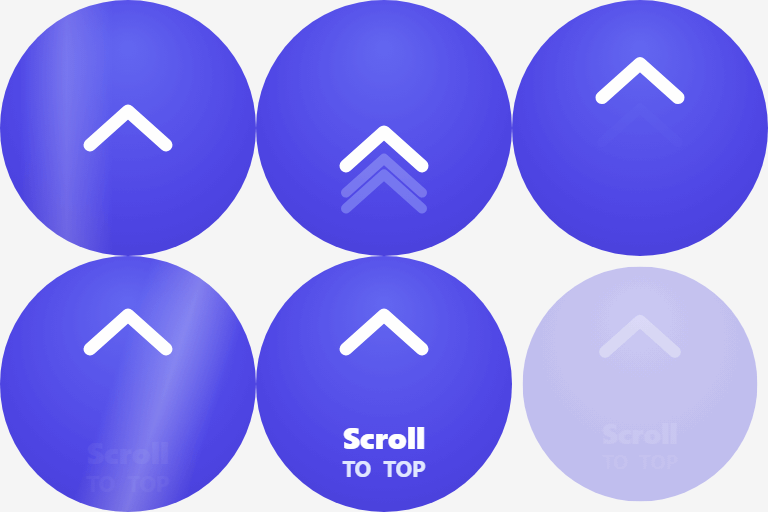
Improve your website’s user experience with Scroll to Top, a lightweight and feature-rich plugin that adds a smooth “Back to Top” button and a Reading Progress Bar. Long pages can be frustrating. This plugin helps users navigate seamlessly with a single click. Unlike basic scroll plugins, we offer 16 professionally designed styles, ranging from minimal arrows to gamified animations like Rocket Launch and Cosmic effects. It also includes a visual Reading Progress Bar, perfect for blogs and long-form content to show readers their position on the page. Position the bar at the top, bottom, or right side of the screen — and if you choose the top position, the plugin automatically detects your site’s header (including sticky and FSE block theme headers) and places the bar neatly below it. 🚀 Why Choose This Scroll to Top Plugin? Every website needs smooth navigation. Our plugin boosts user experience by allowing visitors to return to the top of your page instantly, reducing bounce rates and keeping them engaged. We prioritized performance, ensuring the plugin is lightweight and fast, loading assets only when necessary so your site speed remains unaffected. You can fully customize the extensive color options to match your brand identity, complete with live previews. Plus, it’s designed to be mobile-responsive, working perfectly on phones, tablets, and desktops. Boost Navigation: Reduce bounce rates by making it easy to scroll back up. Lightweight & Fast: Optimized for performance; assets load only when needed. Fully Customizable: Match your brand with unlimited colors and live previews. Mobile Responsive: Designed to work perfectly on phones, tablets, and desktops. ✨ Key Features Unlock a suite of powerful features designed for modern websites. Choose from over 16 unique styles, ranging from minimalist designs to fun animations. The integrated Reading Progress Bar gives users a clear visual indicator of their position, while the smooth scroll technology ensures a polished feel. You have full control over positioning, scroll triggers, animation speed, and page targeting to ensure the button appears exactly when and where you need it. 16+ Unique Styles: Choose from minimalist arrows, rockets, bubbles, neon effects, and more. Reading Progress Bar: A sleek bar that fills as users scroll — position it at the top, bottom, or right side. Header Auto-Detection: When placed at the top, the bar automatically detects sticky and FSE block theme headers and sits neatly below them. You can also provide a custom CSS selector. Smooth Scroll Up: Customize the scroll speed (Slow, Normal, Fast) for a polished feel. Smart Positioning: Place the button Bottom-Right, Bottom-Left, or Bottom-Center. Scroll Trigger: Auto-show the button after scrolling a specific distance (e.g., 300px). Page Targeting: Display on specific post types (Homepage, Posts, Pages) or exclude as needed. Accessibility Ready: WCAG compliant with keyboard support and ARIA labels. 🎨 Styles Included We understand that every site has a unique design language. That’s why we’ve included a diverse library of button styles. Whether you need an essential arrow for a professional business site, a visual indicator for a blog, or a fun animation for a creative portfolio, you’ll find the perfect match. Our styles include everything from neon pulses and holographic effects to classic, minimal designs. Essential: Classic Arrow, Minimal Glass, Floating Bubble. Visual Indicators: Progress Circle, Progress Bar (Top / Bottom / Right). Fun Animations: Rocket Launch, Magic Wand, Floating Bubble. Modern Effects: Neon Pulse, Holographic, Cosmic Sparkle. ♿ Accessibility First Web accessibility is at the core of our development. We believe navigation should be seamless for everyone. The plugin is built with strict WCAG compliance, offering full keyboard navigation support (Tab key) and proper ARIA labels for screen readers. It also respects user preferences for reduced motion, ensuring a comfortable experience for all visitors. Keyboard Support: Full keyboard navigation support (Tab key). Screen Readers: Proper ARIA labels for screen readers. Reduced Motion: Respects user “Reduced Motion” settings in browsers. 💡 Pro Tips: * Use the progress circle style for long-form content * Match button colors to your brand palette * Enable the progress bar and set it to “Top” — it will auto-detect your sticky header and sit neatly below it * Use the custom selector option if your theme uses a non-standard header class (e.g. .my-theme-header) * Adjust bottom offset to avoid conflicts with other fixed elements * Position buttons based on your site’s layout
Top keywords
- bar10×1.41%
- scroll10×1.41%
- progress8×1.13%
- button6×0.84%
- position6×0.84%
- progress bar6×0.84%
- styles6×0.84%
- navigation5×0.70%
- site5×0.70%
- bottom4×0.56%
- choose4×0.56%
- designed4×0.56%
MakeITeasy Back To Top
Very customizable and lightweight back to top 🔝 solution. Fully compatible with Full Site Editing themes and with classic themes if block editor is enabled. How this differs from other similar plugins? This is a block, inside which you can insert any other block. This makes it utmost customizable. By default, a button block with inline image is inserted, but you can remove it and insert any other block you wish or customize default button or insert your own image. As button is a normal WordPress block, you can customize it like you would normally do, pick background color or foreground color from sidebar, choose border radius for edges, or anything else which is customizable in block editor. Features (block editor sidebar) In the block sidebar, it is possible to choose if the block will appear both on desktop and mobile variant of page and breakpoint between the two. Choose page scroll mode when clicked on button: smooth or instant. Opacity of the block. Duration of slow appearance (“fade in”). Position of the block from bottom right corner of the browser window, in css unit by choice. Go to bottom functionality. DEMO Test in wordpress playground Choose “Live preview” button in top left area of screen. To get this working, a little effort is needed. These are the steps: Enter the admin area Open site editor (Edit site in admin toolbar) On the left sidebar, in AREAS, find Footer Insert “Back to top” block in the footer group block (outer group block, as there are two), as the last element of group. If you insert it outside, it may appear very wide. If you inserted it in the wrong place, correct it by moving the block to position. Set block alignment to right if you want it at the right side. Be carefull to set “Back to top”‘s block alignment, not alignment of the inner button. You can also activate “go to bottom” functionality in the block settings sidebar to try this. Save and navigate to front page. It should work. Or, alternatively, try demo of my popup block, where everything is already set up and also back to top button is showcased: MakeITeasy popup Go to bottom Introduced go to bottom functionality – can be turned on in block sidebar (off by default). When user scrolls down button flips down ⬇ and leads to bottom of page, when scrolled up it flips up ⬆ and leads to top of page. Usage General Plugin provides a block called “Back to top”, which serves the commonly known purpose to take user to top of the page. By default, button appears only when user scrolls some amount down. Block themes The best way to use plugin is using full site editing theme. There you can add it to footer (alternatively to header) and block will be displayed on each page with this footer. If you add it to page, it will be displayed for this page only. Classic themes As mentioned above, adding this block to page will show it only on this page. To show it on many/all pages, you have to add it to footer (or header). You can do so by creating block on one of the pages and copy its code (copy option from block menu). Then, add echo do_blocks($content); line in your footer (header) php template, where you replace $content with copied block content string. Content must be between single quotes, as it is string, according to rules of PHP. Or even better, use nowdoc syntax. Example for theme GeneratePress: First create child theme, so your code is not overwritten by theme updates. Then in footer.php, after line 13 of original footer.php of theme insert following code: echo do_blocks( block ); Important note: If you install block through block editor, and after creating block, you copy block code to footer and delete original block in page, plugin will be automatically uninstalled. This is handled by WordPress. Therefore, if you are using classic theme and you will use block code only in PHP, either install plugin in a classic way through plugins page or keep one copy of block active somewhere (e.g dummy draft page), to prevent automatic uninstall. Developers Github repository https://github.com/Lovor01/makeiteasy-back-to-top