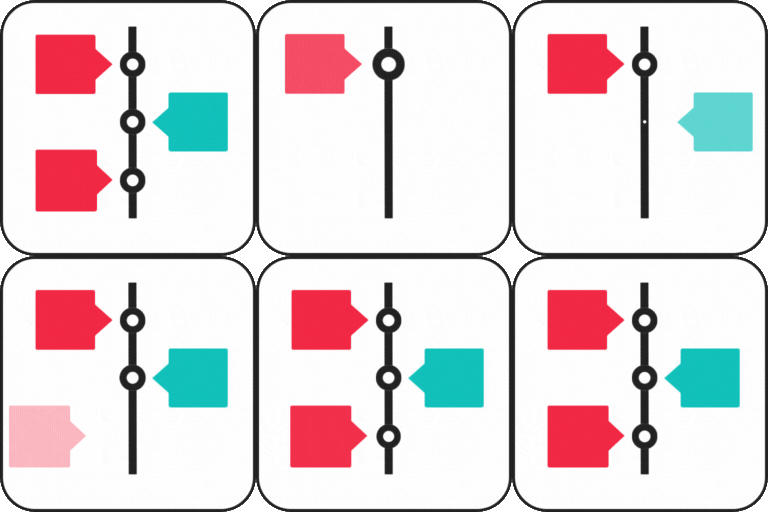
Cool Timeline (Horizontal & Vertical Timeline)
Horizontal & Vertical Timeline, History Timeline Slider Cool Timeline is an advanced WordPress plugin that helps you easily create timeline sliders for your website. You can use it to display your company’s history, product roadmaps, personal stories, or key events in a vertical layout. Using Cool Timeline, you can create timeline stories in two ways: Gutenberg Timeline Block: Add and manage timeline stories easily using the built-in block in the WordPress editor. Great for showing steps, events, or roadmaps with a clean design. Shortcode-Based Classic Timelines: Using the classic editor? Just add a simple shortcode to display your timeline on any page or post and customize it the way you like. Key Features Timeline Slider: Display your stories in a stunning vertical or horizontal timeline layout. Gutenberg and Classic Editor Support: Create timelines easily using the Gutenberg block or a simple shortcode. This works with both new and classic WordPress editors. Smart Shortcode Generator: Use shortcodes to display timeline slider anywhere on your site without needing the code. Cool Timeline Shortcode: [cool-timeline layout=”default” skin=”default” date-format=”F j” icons=”YES” show-posts=”20″ order=”DESC” story-content=”full”] Works with Page Builders: Compatible with popular page builders like Gutenberg, WPBakery, and Classic Editor. Elementor and Divi users can also create timelines with additional plugins. ASC/DESC Order: Arrange your timeline stories in ascending or descending order as needed. Customizable Description: Choose to show either a summary or the full description for each timeline story, depending on how much detail you want to present. Story Order (ASC / DESC): Sort your stories in ascending (oldest to newest) or descending (newest to oldest) order based on your timeline. Date Format: Choose from various date formats to display your timeline stories according to your requirements. Customizable Colors & Fonts: Change colors, fonts, and styles to fit your brand or website design. Pagination: Set how many stories you want to display per page to easily manage multiple timelines. Icons or Dots: Highlight events using custom icons or simple dots to visually distinguish each story on the timeline. Content Alignment: Align your timeline content left, right, or center to match your website’s style and improve readability. Multiple Timelines: Create and manage several timeline sliders on one site, like company history, product updates, or personal stories. Animation Effects: Add subtle animations to your timeline items as they appear, making the overall experience more interactive and engaging. 🔗Check Free Version Demos Where can you use the Cool Timeline? Company History Showcase: Display your company’s growth and key milestones in a timeline format. Event Highlights: Present a timeline of events for conferences, seminars, or special occasions. Product Launch Timeline: Highlight the different stages and key dates leading up to a product or service launch. Personal Journey: Share your personal story, career progression, or life journey using a timeline. Project Roadmap: Create a visual timeline of project phases, deadlines, and achievements. Achievements and Awards: Showcase significant accomplishments, recognitions, and awards over time. Nonprofit or Charity Timeline: Present the key initiatives and impact of your nonprofit organization through a timeline. Portfolio Showcase: Display your work history or project portfolio in chronological order. Historical Events Documentation: Document important historical events or milestones in a timeline. School or Educational Timeline: Highlight significant academic events, school history, or student progress. Wedding or Family Timeline: Capture important family milestones like weddings, anniversaries, or life events. Event Planning: Outline and share a detailed timeline for upcoming events or project plans. Real Estate Development: Display the various stages of a property’s development from start to completion. Startup Journey: Share your startup’s timeline, from idea conception to growth and scaling phases. Sports Achievements: Highlight key moments and accomplishments in an athlete’s or team’s career. Cool Timeline Pro Features Upgrading to the Cool Timeline Pro plugin unlocks the advanced features like access to multiple layouts, including Horizontal layout, Category-Based Timelines, Ajax Load More, Multimedia ( images, videos & slideshow), and more: Timeline Slider Designs: Cool Timeline Pro offers 4 layout types Vertical Timeline Vertical Compact Timeline Vertical One-Side Timeline Horizontal Timeline Each with 6+ design styles like Classic, Modern, Elegant, etc., and 3 skins (Light, Dark, Colorful). Check All Demos. Advance Customization: Set different colors for each timeline story, making your timeline more visually interesting. Add Images & Videos: Make your timeline stories more interactive by adding images, videos, and slideshows. Multiple Timelines: Create and manage several timelines on one site, like company history, product updates, or personal stories. Smart Shortcode Generator: Use shortcodes to display timelines anywhere on your site without needing to code. Works with Page Builders: Compatible with popular page builders like Gutenberg, WPBakery, and Classic Editor. Elementor and Divi users can also create timelines with additional plugins. Custom Labels: Use labels instead of dates for events, such as process steps or historical periods like AD/BC. Category Filters: Add filters so users can sort timeline stories by category. Blog Post Timeline: Display your blog posts in a timeline layout, highlighting your content by date. Ajax Load More & Pagination: Add pagination and “load more” buttons to easily manage timelines with many stories. Scrolling Navigation: Add scrolling navigation to let users move through long timelines more quickly. Custom Icons: Replace default dots with icons or custom images to make your timeline more personalized. HTML/Links Support: Add “Read More” links or custom HTML in timeline stories to guide users to full content or other pages. Customizable Date Formats: Choose from various date formats to display your timeline stories as you like. Animation Effects: Add animation effects to your timelines to make them more engaging for visitors. Premium Support: Get dedicated support as a Pro user for any help or questions. 🔗Check Pro Version Demos | Get Pro Check Our Other Timeline Plugins Timeline Widget For Elementor: Showcase your company history, product roadmap, and personal journey in vertical & horizontal layout directly inside Elementor. View Demo Timeline Block For Gutenberg: Create interactive timelines directly within the WordPress Block Editor to display step-by-step tutorials, a company’s history, and a product roadmap. View Demo Timeline Builder: Create a small timeline inside the Gutenberg block editor using a vertical or horizontal timeline. View Demo Timeline Module Pro For Divi: Showcase your personal story or company history using stunning vertical or horizontal timelines directly inside the Divi Builder. View Demo Use of 3rd Party Services: This plugin connects to the Cool Plugins API to display information about related plugins inside the dashboard. It also offers optional usage tracking and optional feedback submission on deactivation. Data is sent only after explicit user consent. No hidden tracking is performed, and no frontend visitor or site user data is collected. For more details, please review our Data Usage Policy, TOS, and Privacy Policy.
Top keywords
- timeline58×5.19%
- stories15×1.34%
- timelines15×1.34%
- display14×1.25%
- events10×0.89%
- history10×0.89%
- add9×0.81%
- vertical9×0.81%
- company8×0.72%
- cool8×0.72%
- timeline stories8×0.72%
- classic7×0.63%
TablePress – Tables in WordPress made easy
Boost your website with feature-rich tables that your visitors will love! TablePress is the most popular and highest-rated WordPress table plugin. Easily create, edit, and manage beautiful and modern data tables, from simple price lists to searchable directories, product and model tables, inventories, schedules, and research datasets. Add live sorting, pagination, searching, and other interactive features that help visitors find what they’re looking for on any device. Use any type of data and enrich your tables with images, links, and even math formulas. Import and export tables from/to Excel, CSV, HTML, and JSON files or URLs, including spreadsheet data from Google Sheets, Excel Online, and files stored on Dropbox or OneDrive. Embed tables into posts, pages, or other site areas using the block editor, an Elementor widget, or Shortcodes. All with no coding knowledge needed! Even more great features for you and your site’s visitors and priority email support are available with a Premium license plan of TablePress. Go check them out! Common use cases TablePress will handle a wide range of tables, from simple price lists to searchable directories and large datasets. Popular examples include: Product and model tables Service and price lists Directories and listings Schedules and timetables Participant and member lists Inventories and collections Comparison tables Research and statistical data Accessible and SEO-friendly tables TablePress creates accessible HTML tables whose content can be searched by visitors, WordPress search, and search engines alike. Interactive features like sorting, filtering, and pagination include accessibility enhancements for screen readers and other assistive technologies. This makes it easy for visitors to find relevant information, whether they are browsing a large directory, searching a product table, or using your site’s search function. More information Visit tablepress.org for more information, take a look at example tables, or try TablePress on a free test site. For latest news, follow @TablePress on Twitter/X or subscribe to the TablePress Newsletter. How to use TablePress After installing the plugin, you can create and manage tables on the “TablePress” screen in the WordPress Dashboard. To insert a table into a post or page, add a “TablePress table” block in the block editor or a widget in the Elementor page builder and select the desired table or use Shortcodes with other page builders. Beginner-friendly step-by-step tutorials, guides, and how-tos show how to achieve common and popular tasks with TablePress. You can find examples for common styling changes via “Custom CSS” code on the TablePress FAQ page. You may also add features like sorting, pagination, searching, filtering, alternating row colors, row highlighting, and more by enabling the corresponding options on a table’s “Edit” screen. Premium features Need additional functionality for larger tables or advanced use cases? Premium license plans for TablePress add features such as: Options for responsive tables Advanced filtering and search Fixed table headers and columns Automatic periodic imports Custom styling options And much more Priority email support is also included. Check out the details on the TablePress website.