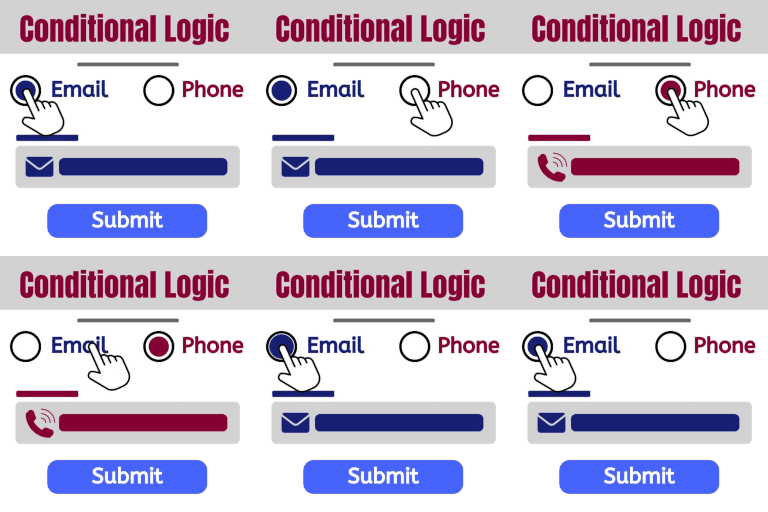
Conditional Logic
Build dynamic forms that can change as a user fills out the form. Show and hide fields. Send certain email, don’t send others. Redirect to one of many pages. The possibilities are endless! DEMO: https://demo.add-ons.org/demo-conditional-logic/ Document: https://add-ons.org/document-elementor-forms-conditional-logic/ Download Pro Version: https://add-ons.org/plugin/elementor-forms-conditional-logic/ Features Easy use Conditional Form Notification Emails: Sending emails to different addresses according to user answers Conditional Redirect on Form Submit: Showing additional questions when a user chooses a specific answer Conditional Webhook on Form Submit: Send data to specific webhook URLs only when certain conditions are met. All fields support: Works with all fields Submit Button support: The submit button can be shown or hidden Multiple Conditions: Define more than one condition for advanced control. No Validation Errors: Submit the form seamlessly even when required fields are hidden. Smart Field Control: Make your forms smart! Display or hide fields, sections, or entire questions based on user responses. No Technical Hassle: Enjoy the benefits of conditional logic without any technical headaches. It’s as simple as it sounds. Cross-browser support. Chrome, Firefox, Opera, IE8+ And more… Conditional Form Notification Emails – Conditional Email Routing Want to send out different notification emails depending on users’ selections in your forms? With our smart conditional logic, you can set up your form to send unique email notifications based on users’ input. Conditional Redirect on Form Submit Want to show website visitors different content based on their form submission? This guide will show you how to set up WordPress conditional redirect on form submit. Webhook Condition Logic Smart Conditional Webhooks – Send data to specific webhook URLs only when certain conditions are met. Dynamic Automation – Easily automate integrations with external systems (like Zapier, Make, or custom APIs) based on user input or form logic. Granular Control – Define “If/Then” rules per form field (for example: If user selects ‘VIP’, send data to CRM webhook). No Code Required – Configure conditional rules directly inside Elementor Forms without writing any PHP. Supports Multiple Webhooks – Trigger different endpoints simultaneously, depending on user selections or calculated values. Upgrade to pro version Additional operators ( greater than, less than, .. ) onditional Form Notification Emails > 5 Conditional Redirect Suports > 5 Conditional Webhook Suports > 1 Conditional Fields for Elementor Form – Display Conditions Elementor conditional fields, Elementor form display conditions, Elementor show hide fields, Elementor conditional logic, Elementor dynamic fields, Elementor form visibility, Elementor form conditions, Elementor conditional form, Elementor hide field on condition, Elementor field rules, Elementor logic form, Elementor smart form, Elementor conditional input, Elementor advanced form logic, Elementor form field toggle
Controller Fields for Contact Form 7
Contact Form 7 is an excellent WordPress plugin and one of the top choices of free WordPress plugins for contact forms. Controller Fields makes it even more awesome by adding dynamic content capabilities. This plugin provides new form tags for select fields, checkboxes, and radio buttons so you can use them to control the display of other fields and content. Some examples might include: Hiding or revealing additional form fields based the current value in a dropdown Hiding or revealing content when users click a checkbox Hiding or revealing information based on which radio button is currently selected Controllers and controlled fields can be nested The possibilities are endless! View Demo Preview this plugin in the WordPress Playground, a sandbox environment where you can explore the features of this plugin, both in the WordPress backend as an admin user and on the frontend. WHAT DOES IT DO? This plugin creates three (3) new form tags for controlling the appearance of other form tags (aka “controller”) and a special form tag generator button to output the HTML needed to wrap the controllable form tags inside. HOW TO USE IT After installing and activating the plugin, you will have four (4) new buttons at the top when creating or editing a Contact Form 7 form: select controller, checkbox controller, radio controller, and controlled form tag wrapper. Most of the options in their tag generators will be familiar to Contact Form 7 users but there have been some upgrades. Id Attribute The frontend script relies on unique IDs for the controller form tags, so be sure to always set one! Options There are three (3) ways you can define your options. The first method is simply typing your options with each one on a new line, e.g.: Apples Bananas Dragonfruit The second method is similar, but it allows you more control over the value and label by using | to separate them, e.g.: fruit_1 | Apples fruit_2 | Bananas fruit_3 | Dragonfruit The third method is dynamic in that you can use a shortcode to populate your options with two important provisions: The shortcode should NOT include the normal square brackets ([ and ]). So, instead of [my_shortcode key='value'] you would use my_shortcode key='value'. Any parameters in the shortcode must use single quotes. That is: my_shortcode key='value' and not my_shortcode key="value" Shortcodes used here should return a string value with the option or option group HTML. Default value This field can take static text or a shortcode. If using a shortcode, the same syntax applies from the options field. However, this field also has a few more needs: The text/shortcode must first have apostrophes converted to it’s HTML entity code, ' After that, it must be URL encoded so that spaces become %20 and other non-alphanumeric characters are converted. Placeholder Only available for the select controller form tag, this field can take static text or a shortcode. If using a shortcode, the same syntax applies from the options field. However, this field also has a few more needs: The text/shortcode must first have apostrophes converted to it’s HTML entity code, ' After that, it must be URL encoded so that spaces become %20 and other non-alphanumeric characters are converted. Read Only Attribute Simply check this box if you do not want to let users edit this field. It will add the readonly attribute to your form field. Disabled Attribute Simply check this box if you do not want to submit this field in the form. It will add the disabled attribute to your form field.